 Kosken
Notices and decisions where your team works
Kosken sends incidents, approval requests, backup results and SLA warnings to email and to your chat. In Slack and WhatsApp, a person with access approves or rejects a request with a button.
The channels
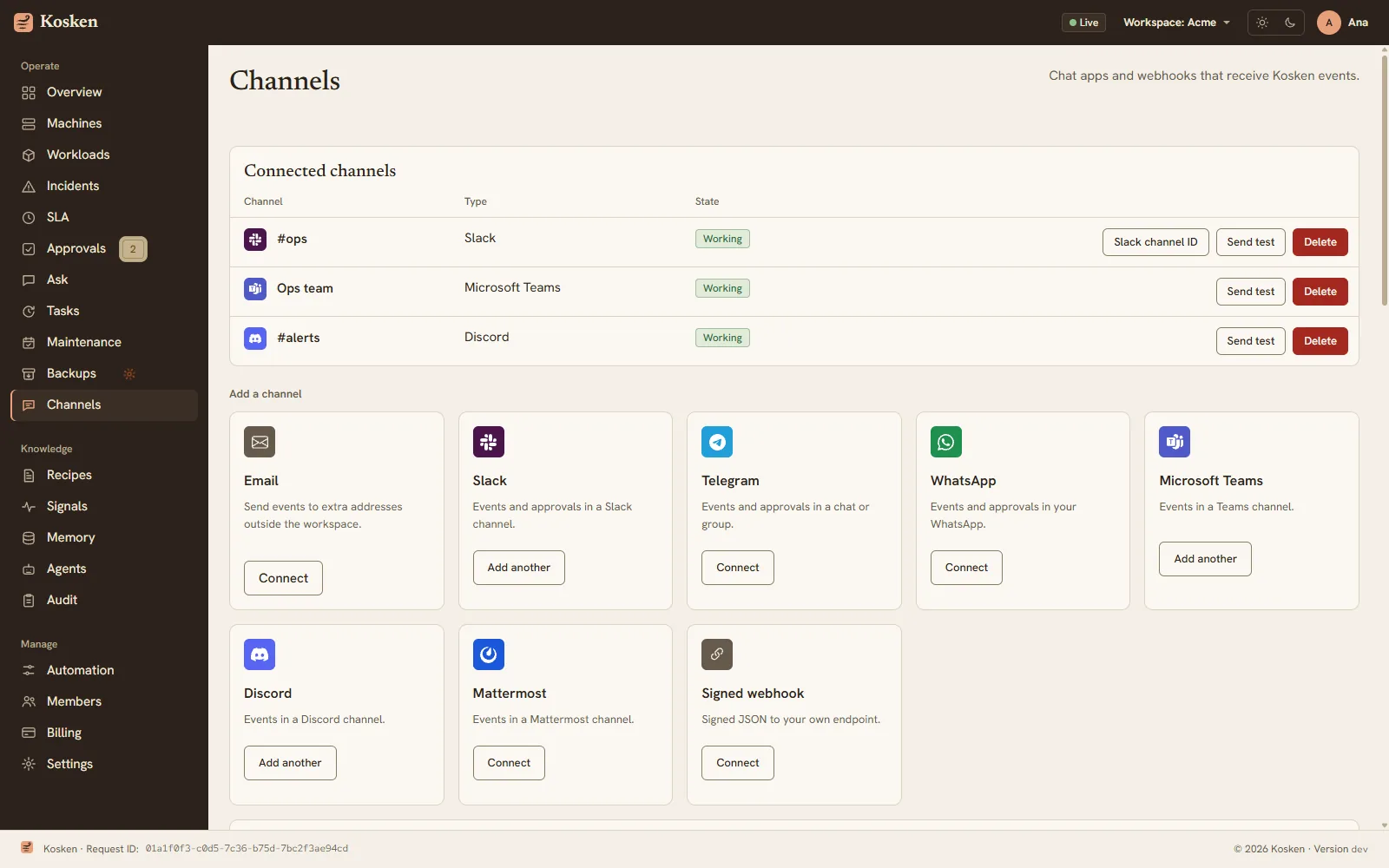
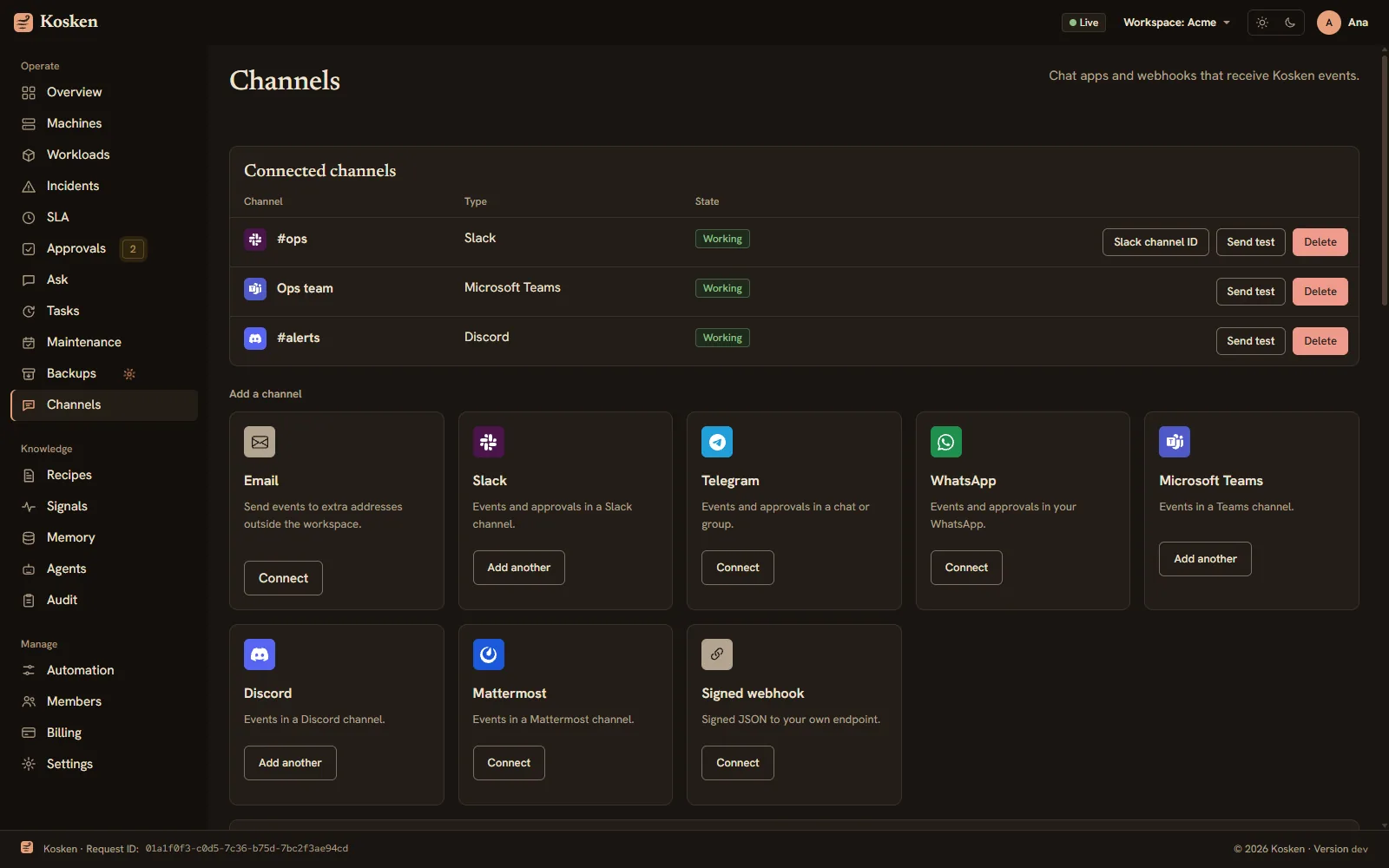
An owner adds the channels of the workspace on the Channels page. Each member links their own accounts there.
Each member gets the notices of the workspace by email, with a link to the page. A member can turn off each kind of notice, but not a critical one. An owner can add more addresses. Each address confirms first.
- Slack
Install the Kosken app in your Slack workspace and choose a channel. The messages of one incident stay in one thread. A request for decision has the buttons Approve live, Approve preview and Reject. Each member links their Slack account, so Kosken knows who clicked.
Kosken has one WhatsApp number. Each member links their own number with a code from the Channels page. Then the member gets on WhatsApp what Kosken sends them by email. A request for decision comes with buttons. After 24 hours with no message from you, WhatsApp allows only approved templates, and Kosken uses them.
- Microsoft Teams
Paste the URL of an incoming webhook of a Teams channel. Each notice arrives as a card with a button that opens the page in Kosken. You decide on that page.
- Discord
Paste the webhook URL of a Discord channel. Each notice arrives with a link to the page in Kosken. You decide on that page.
What goes where
- Rules
A rule takes a kind of notice and a lowest severity, and sends it to a channel or to people: all members, the members with write access, or the owners.
- Kinds of notice
Among them: an incident opened, failed or reported. An approval requested, reminded or expired. The result of an action. A machine offline or back online. An SLA warning or breach. A backup failed, missed or recovered, a failed check, a finished restore, and a failed destination.
- Send test
Each channel and each linked account has Send test, so you see that it works before an incident.
- Sealed secrets
Webhook URLs and the Slack token are sealed with the key of the workspace. Kosken never shows them again.
A decision from the chat is still checked
- Only a linked account counts
A click counts only from an account that a member linked. Kosken checks the access of that member again on each click.
- A reject always works
Any member with the right access can reject from the chat.
- Some approvals need the browser
An approval of a high-risk change that a model proposed needs the web page and a new check of your identity. The chat answers with a link to the page. A critical request has no buttons in the chat.
Start with one machine
Create a free workspace.
Run one command on the machine. The Connect machine page shows it with your key. It installs the agent and the executor:
curl -fsSL https://<workspace>.kosken.ai/enroll/<key> | sudo shThe machine joins in audit mode. Kosken reads and reports, and changes nothing. Move it to shadow or live when you trust what you saw.
Free for up to 5 machines. A paid plan adds machines in blocks of 5.
More of Kosken
- Incident responseFrom a failed signal to a root cause report and a checked fix.
- MonitoringMonitors for services, ports, URLs, containers, disks and logs.
- Recipes and approvalsSigned fixes, five gates, and a person who decides.
- Tasks and maintenanceScheduled checks, planned changes, and the jobs of each machine.
- BackupsEncrypted backups of databases and files to storage that you own.
- Fleet and modesMachines, workloads, and the audit, shadow and live modes.
- Ask KoskenAsk about your fleet in plain words, with your own models.