 Kosken
Update the agent and remove it from a machine
How the agent updates itself, how to choose its release channel, and how to archive, delete and uninstall it.
On this page
This guide shows how the agent stays up to date, how to choose its release channel, and how to remove the agent and the machine.
How the agent updates
The agent updates by itself. There is no button to start an update.
- Kosken compares the version of the agent with the newest release of the release channel of the machine. It does this when the agent connects, every 5 minutes, and when a new release appears.
- When a newer version exists, Kosken sends the signed release manifest to the agent.
- The agent checks the signature of the manifest and the hash of each file. It refuses an older version.
- If a job runs, for example a backup, the update waits until the job ends.
- The new version runs a self-test. Then the agent and the executor restart with it.
- If the new version does not reach Kosken in 2 minutes, the machine goes back to the previous version.
The whitepaper explains the signatures of the releases.
Choose the release channel
You need write access.
- Open the machine and select the tab Settings.
- In Release channel, choose
stableorbeta. Beta gets each agent release first. Stable gets it after beta. - Select Save.
See the version
- The machine list shows the version in the column Agent. The badge update means that a newer version exists in the channel of the machine.
- The tab Hardware shows the version, the channel, and current or update with the newest version.
- On the machine, this command shows the version of the agent and of the executor:
sudo /usr/local/lib/kosken/current/kosken-agent status
An agent that stays on update for a long time may be offline or may refuse the release. Read its log. See An agent that is offline.
Archive a machine
Archive a machine that you stop using and may use again. You need write access.
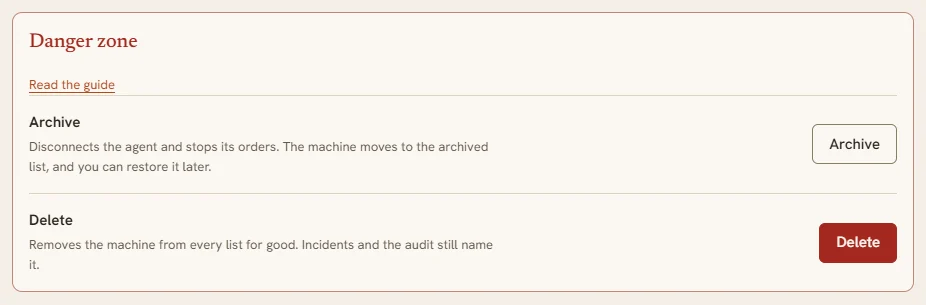
- Open the machine and select the tab Settings.
- In Danger zone, select Archive.
- Confirm Archive this machine?.
Kosken revokes the certificate of the agent, disconnects it, and stops the orders that wait. The agent removes its keys from the machine. The machine moves to the archived list: select Show archived on Machines to see it. Its incidents and history stay.
To use it again, open it, select Restore, and run the new install command on the machine.
If you only turn the machine off for a while, use Pause monitoring instead. See the Settings tab.
Remove the agent from the machine
Archive or delete the machine in Kosken first. Then run this command on the machine:
sudo /usr/local/lib/kosken/current/kosken-agent uninstallIt stops and disables kosken-agent and kosken-exec, removes their units, removes /usr/local/lib/kosken, /etc/kosken, /var/lib/kosken and /run/kosken, and removes the user kosken-agent and the group kosken.
The reach host program kosken-connector also lives in /usr/local/lib/kosken. If the same host runs it, the uninstall removes its program too.
To stop the agent and remove only its keys, and keep the files, run sudo /usr/local/lib/kosken/current/kosken-agent disconnect.
Delete a machine
You need write access.
- Open the machine and select the tab Settings.
- In Danger zone, select Delete.
- Confirm the message.
- A machine that never connected is removed at once, and its slot goes back to the plan. A machine whose install command expired is also deleted by itself after 7 days.
- Any other machine is archived first, then removed from every list for good. It cannot come back. Incidents and the audit log still name it.
Something here does not match the app? Tell us