 Kosken
Sign in and your account
Sign in with a password, Google, Microsoft, a passkey or single sign-on, reset a password, change your email, and manage your sessions.
On this page
After you read this guide, you can sign in to Kosken in each way it offers, reset a forgotten password, and change your account on the Account page.
Sign in with a password
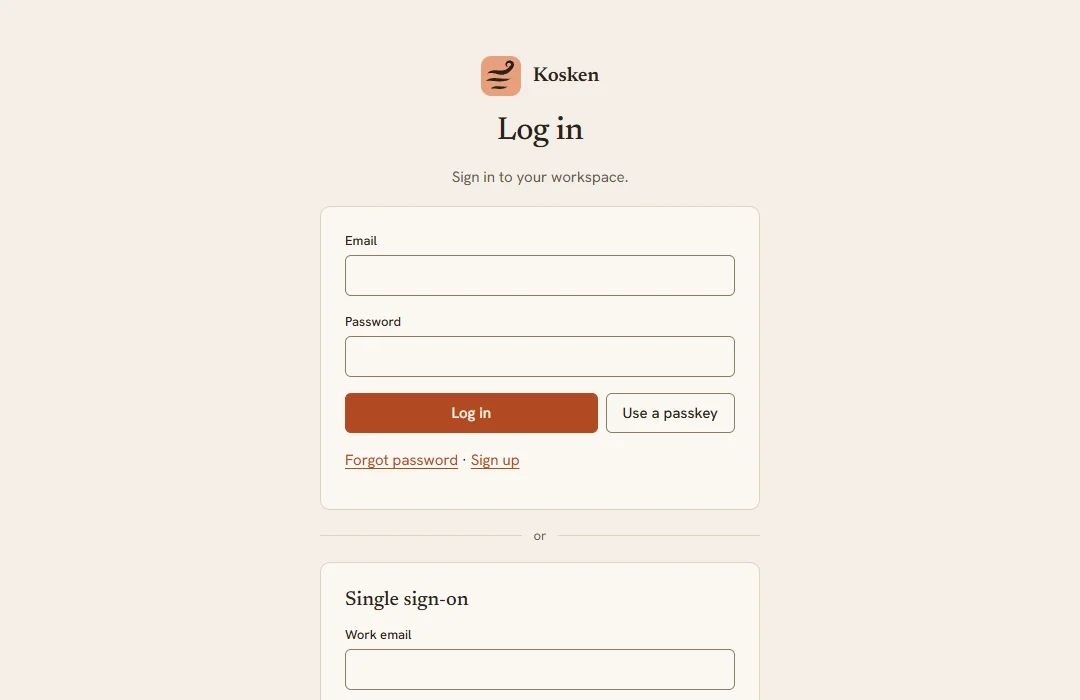
- Open the Log in page.
- Type your Email and your Password.
- Select Log in.
If you turned on an authenticator app, the Second factor page opens next. See Sign in with a code.
After 5 failed attempts, Kosken makes you wait before the next one. The wait grows up to 15 minutes.
Sign in with Google or Microsoft
- On the Log in page, select Continue with Google or Continue with Microsoft.
- Sign in at the provider.
- When no account has the email of the provider, Kosken makes a new account.
- When an account with a verified email has the same address, Google joins it at once. Microsoft first sends a confirmation email to that address. Open the link in it.
- When that account has an email that nobody verified, Kosken refuses. Sign in with your first method, then verify your email.
To see or remove a sign-in that you linked, see The Account page.
Sign in with a passkey
- On the Log in page, type your Email. You can leave it empty if your device keeps the passkey with your account name.
- Select Use a passkey.
- Confirm on your device, for example with a fingerprint or a PIN.
A passkey is also a second factor, so Kosken asks for no code. To add a passkey, see Passkeys. If the page says This browser does not support passkeys., use another browser or another method.
Sign in with single sign-on
Use this when your company set up single sign-on for its workspace.
- On the Log in page, in Single sign-on, type your Work email.
- Select Continue with SSO.
- Sign in at the identity provider of your company.
When a workspace enforces single sign-on for an email domain, people with that domain cannot sign in with a password, Google or Microsoft. An owner sets this up in Settings, Security. See Settings.
Reset a forgotten password
- On the Log in page, select Forgot password.
- On the Reset password page, type your Email.
- Select Send link. If an account has this address, Kosken sends an email with a link.
- Open the link within 1 hour. The Set a new password page opens.
- Type the New password. Use 12 characters or more.
- Select Save password, then log in with the new password.
A reset ends all your sessions on every device, and Kosken sends you a notice by email. The page never says whether an account exists, and each request counts like a failed sign-in.
The Account page
Open the account menu at the top right, and select Account. In a workspace, the page shows only Profile and Sessions. To change your email, your password or your linked sign-ins, open Account from the Workspaces page, the page that lists your workspaces.
- Profile
- Change your Name and the Language of the app, then select Save.
- Shows your address with Verified or Not verified. See Change your email.
- Password
- Type the Current password and the New password, then select Change password. Your other sessions end. If you signed up with Google or Microsoft and have no password, leave Current password empty. This needs a verified email.
- Linked sign-ins
- The Google or Microsoft accounts that can sign you in. Select Unlink to remove one. Kosken refuses when it is your only way to sign in.
- Sessions
- Each browser where you are signed in, with its address and the time it was last seen. Select End session for one, or End all other sessions. A session ends after 12 hours without use, and after 30 days in all cases.
- Delete account
- Type your email and select Delete account. Kosken refuses while you are the only owner of a workspace. Records that the law requires stay.
The Security button opens the second factor settings. See Second factor.
Change your email
- Open Account from the Workspaces page.
- In New email, type the new address.
- Select Change email. If you use an authenticator app, Kosken first asks for a code. Type it, then type the new address and select Change email again.
- Open the link that Kosken sends to the new address. It works for 24 hours.
Your current email must be verified first. After the change, Kosken sends a notice to the old address. If another account already uses the new address, Kosken sends no link.
Something here does not match the app? Tell us