 Kosken
Plan and billing
The free plan and the steps that unlock its servers, Pro in packs of 5, promotion codes, changing packs, canceling, and a failed payment.
On this page
After you read this guide, you can see how many servers your workspace has, unlock the free servers, buy Pro, and manage the payment.
Open the billing page
Only an owner of the workspace can open this page.
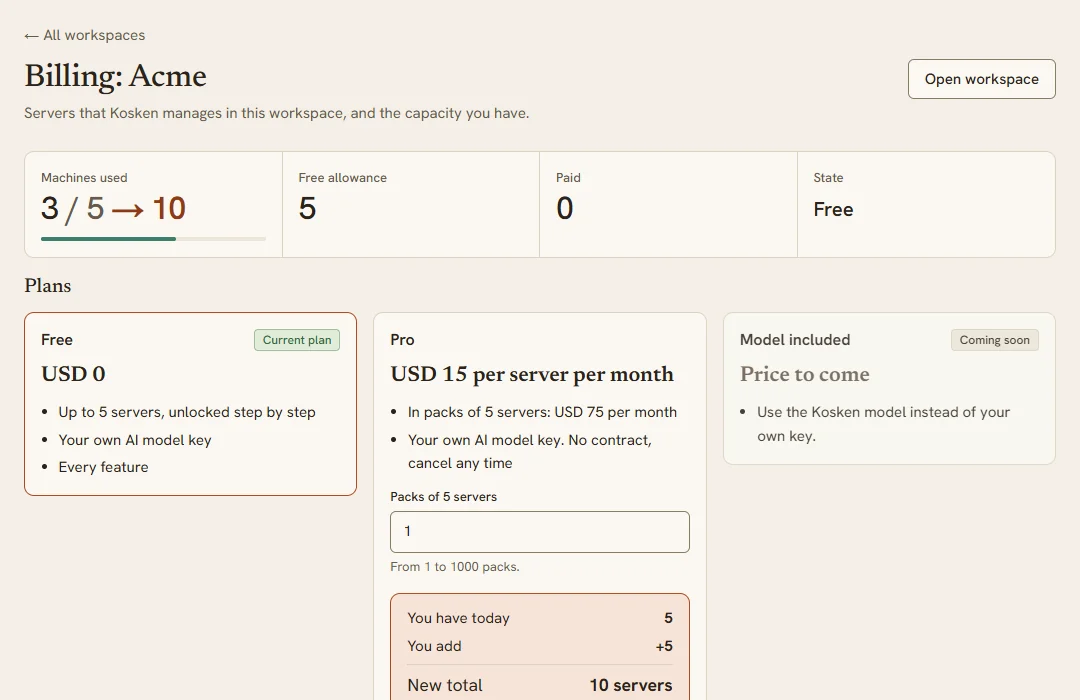
- Open the account menu at the top right, and select Billing. You can also select Plan and billing on the card of the workspace on the Workspaces page.
The page shows Machines used against the limit, the Free allowance, the Paid servers, and the State of the plan. A server counts when you connected it and did not archive it.
The free plan
The free plan costs USD 0 and has every feature. You use your own AI model key. It gives up to 5 servers, which you unlock step by step:
| Step | Servers |
|---|---|
| Every workspace at the start | 1 |
| An owner has a second factor: an authenticator app, a passkey, or single sign-on that checked a second factor. See Second factor. | +2 |
| Decide your first proposal: a person approves a proposal with Approve preview only. | +1 |
| Add a teammate: a person joins and verifies an email address. | +1 |
| Finish a fix that runs live: a person approves a change, it runs in live mode, and its check passes. | +1 |
The free total stops at 5. The Milestones card shows each step with Done, or with the servers that it adds. It also lists steps that add no server: Connect your first machine, Save an LLM key, and Close an incident and find it in the audit log.
- The 2 servers of the second factor stay while at least one owner has it. If the last such owner turns it off, they go at once.
- A teammate who is an owner does not count. A teammate with the same email domain as an owner counts only when the workspace verified that domain in Single sign-on. See Settings.
Choose Pro
Pro costs USD 15 per server per month, sold in packs of 5 servers: USD 75 per pack per month. Yearly costs USD 750 per pack, 12 months for the price of 10. The packs add to the free servers of the workspace.
- On the billing page, in the Pro card, type the number of Packs of 5 servers. Use 1 to 1000.
- In Billing period, select Monthly or Yearly: 12 months for the price of 10. The field shows only when the yearly plan is offered.
- Read the sum: You have today, You add, New total and You pay.
- Select Choose Pro. The Stripe checkout opens.
- If you have a promotion code, type it in the promotion code field of the checkout.
- Pay with a card.
Stripe returns you to the billing page. It says Payment received. The new capacity shows here in a moment. If you leave the checkout, it says Checkout was canceled. Nothing was charged. Kosken never sees your card number.
Choose Pro from the site
The button Start free, then choose Pro on the Pricing page opens the sign-up with the Pro choice. Every workspace starts free. Make your account and your workspace. Kosken then shows a note that opens the billing page of the workspace that pays. To hide the note and stay on the free plan, select Not now.
Change the number of packs
- On the billing page, in the Pro card, select Change blocks. The Stripe billing portal opens.
- Change the quantity of packs, and confirm.
The Pricing page explains how Stripe charges or credits a change.
Invoices, card and cancel
Select Manage billing to open the Stripe billing portal. There you can change the card, read and download the invoices, and cancel.
A cancel takes effect at the end of the period that you paid. Until then, Pro stays active, and the billing page says Your Pro plan is canceled. with the end date. To undo the cancel, select Keep Pro. After the end date, the state is Free (Pro canceled) and the workspace keeps only its free servers. See Cancellation and refunds.
A failed payment
When a payment fails, the workspace enters a grace period of 7 days. The state is Grace period, and the billing page says Your last payment failed. with the date it ends.
- Select Update card. The Stripe billing portal opens.
- Change the card.
During the grace period, the workspace keeps the packs that it paid for. Packs that you add in this period count only after a payment goes through. Kosken sends a notice to the owners each day. When a payment goes through, the grace period ends. If no payment goes through in 7 days, the workspace keeps only its free servers.
More servers than the limit
At the limit, you cannot connect a new machine. When a workspace has more servers than its limit, for example after Pro ends, the newest servers go to audit mode. They still report and Kosken still classifies their incidents, but it runs no fix on them. When the workspace is under the limit again, each server gets back its saved mode. To free a place at once, archive a server. See Modes.
Something here does not match the app? Tell us