 Kosken
Channels and notification rules
Choose which Kosken events reach which people and chat apps, add a channel, send a test, and link your own chat account.
On this page
After you read this guide, you can send Kosken events to the right people and channels, and link your own chat account.
How messages reach people
Kosken sends a message when an event happens, for example an incident opens or an approval waits. A rule says which event goes where. A message goes to one of two places:
- Members: email to each member with a verified address. A member who linked Telegram or WhatsApp also gets there what the rule sends by email. Email needs no setup. See Email.
- A channel: a chat app or an endpoint of the workspace. See the guide of each kind: Slack, Telegram, WhatsApp, Discord and Signed webhook. The page also offers Microsoft Teams and Mattermost.
In the sidebar, select Channels. Any member can open the page. Only an owner can add a channel, add a rule or add an email address. Each member can link their own Telegram and WhatsApp.
The rules of a new workspace
A new workspace has rules that send email with no setup:
- Writers get incidents, approvals, action results, incident reports, SLA warnings and breaches, the messages that Kosken sends when time matters, and backup events.
- Owners get machines that go offline, a tripped breaker, plan limits and payments, a broken LLM key, a suspended alert source and a request to delete the workspace.
You can edit, turn off or delete each of these rules.
Add a channel
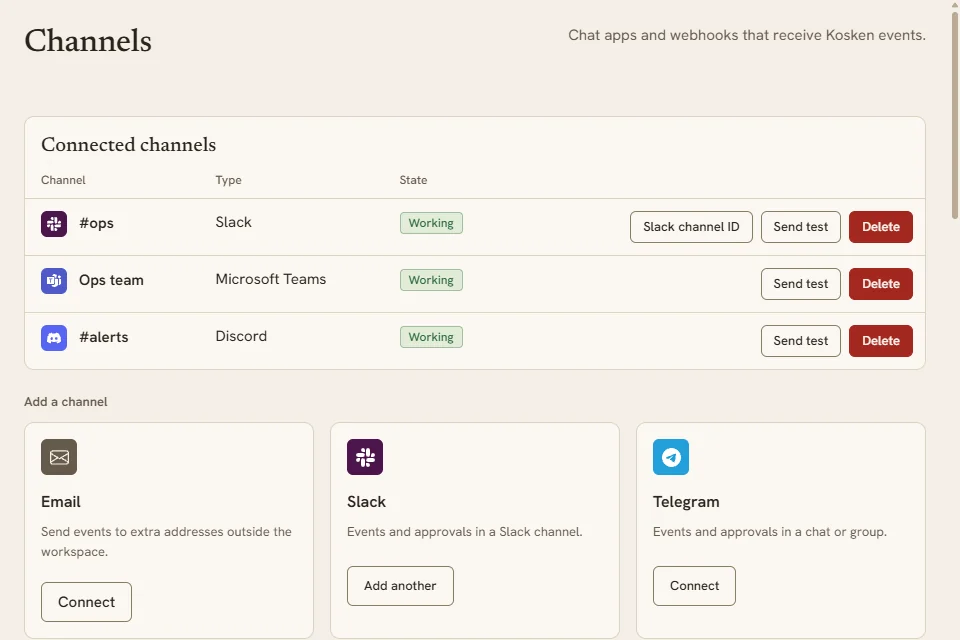
- Under Add a channel, find the kind of channel.
- Select Connect. When the kind already has a channel, the button is Add another.
- Follow the steps in the window. Each kind has its own guide.
The new channel shows in Connected channels with its kind and its state. Working means that the last delivery did not fail with an authorization error. Broken means that it did. Kosken sends nothing to a broken channel. Delete it and connect it again. For Slack, save the channel ID again. See Fix a broken Slack channel.
A channel gets nothing until a rule sends events to it.
Send an event to a channel or to members
- Go to Rules.
- In Event, choose the event, for example Incident opened.
- In Severity, choose the lowest severity that the rule sends: Info, Warning or Critical.
- In Channel, choose a channel. To send to people, choose No channel (members).
- For members only: in Members, choose Owners, Writers or All members. In Through, choose
email,telegramorwhatsapp. - Optional: write an Environment or a role in Roles. The rule then sends only events of machines with that environment or role.
- Optional: select Include extra addresses to also send email to the confirmed extra addresses.
- Select Add rule.
Each rule in the table has Edit, Turn off or Turn on, and Delete. When two rules send the same event to the same person in the same way, the person gets one message.
Send a test
In Connected channels, select Send test on a channel. Kosken sends Test message from Kosken to it. An owner can test any channel. Each member can test their own linked chat accounts.
Link your own chat account
Any member can link a personal Telegram account or WhatsApp number. Kosken then sends there the messages that your rules send you by email, and the messages of rules with Through set to telegram or whatsapp. From a linked account you can approve or reject a change when you have write access. See Telegram and WhatsApp.
My chat accounts lists your linked accounts. To stop the messages, select Unlink.
The language of the messages
- A message to you, by email or in your own Telegram or WhatsApp, uses your language. Change it in Language in the account menu.
- A message to a channel, such as Slack, Discord, a Telegram group or a webhook, and a message to an extra address, is in English.
Limits and retries
- A workspace sends at most 60 messages in one minute. Kosken holds the rest and sends them later in one digest. A critical message is never held.
- Kosken tries to send a message up to 8 times, with a longer wait each time. After that, it drops the message.
- A critical message by email always goes out, whatever your email choices are.
Something here does not match the app? Tell us