 Kosken
Backups
Back up your machines, encrypted, to storage that you own: destinations, plans, runs, history, restore and the recovery kit.
On this page
After you read this guide, you can back up a machine to a bucket or to another machine that you own, follow a backup while it runs, and restore it.
Back up a machine
You need write access.
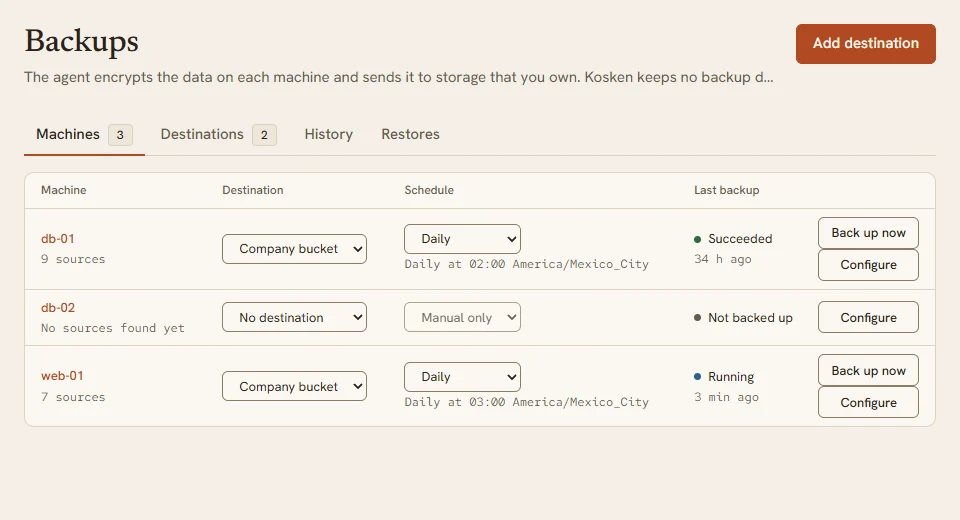
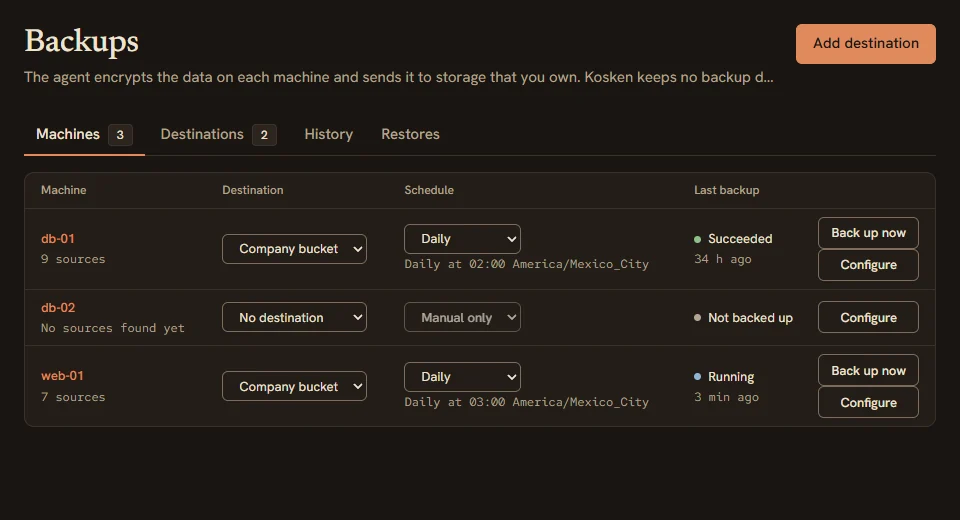
- Open Backups in the sidebar.
- Click Add destination and fill in the form. See Destinations.
- On the destination page, choose a machine in Check from and click Check. Wait until the state is Ready.
- Go back to Backups. In the tab Machines, click Configure on the row of the machine, for example
db-01. - In step 1, What, choose what to back up.
- In step 2, Where, choose the Destination.
- In step 4, When, choose the Schedule.
- Click Save plan, or Back up now to save the plan and start a backup at once.
The first time, Kosken may ask you to run this command on the machine as root. It lets the executor reach the destination. Run it, then back up again:
sudo kosken-agent enable storageDestinations
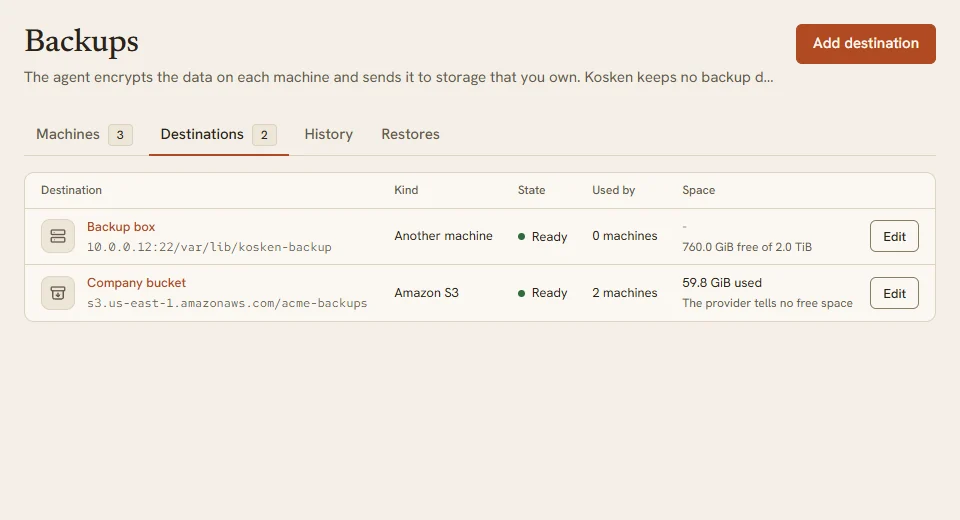
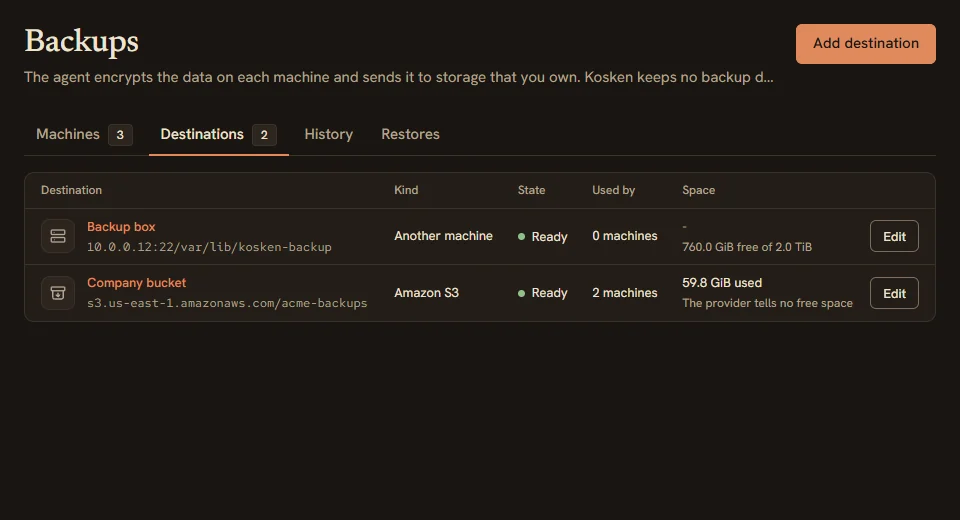
A destination is storage that you own. Kosken keeps no backup data. Each machine gets its own encrypted repository at the destination. A workspace has at most 20 destinations.
An S3 bucket
Choose S3 bucket in Kind. The Provider list fills in the usual endpoint and region for Amazon S3, Cloudflare R2, Backblaze B2, Hetzner, DigitalOcean Spaces, Wasabi, Hugging Face and MinIO. Choose Other for another S3 service. Then fill in:
- Endpoint: the host name, with no
https://and no path. - Region and Bucket.
- Folder in the bucket: optional. Each machine gets its own folder under it.
- Access key and Secret key. Kosken keeps the key encrypted and sends it only to the agent. To keep the current key on an edit, leave the field empty.
- Use path-style addresses: some providers need it. The provider list sets it.
Another machine
Choose Another machine to keep backups on a disk of another machine of the workspace, over SFTP. Fill in Receiving machine, Address senders use (an IP address or a host name that the other machines can reach), SSH port (default 22) and Folder (default /var/lib/kosken-backup). The agent on the receiver makes a separate SFTP user for each sender, so one sender cannot read the backups of another. A machine cannot keep its own backups.
If the SSH host key of the receiver changes, backups stop. The backup page of the machine shows the new keys. Compare them with the keys on the receiver, then click Accept the new key.
Delete a destination
At the bottom of the destination page, type the name of the destination and click Delete. The plans that use it stop until you pick another destination. The backups at the destination stay. Download the recovery kit first.
The plan of a machine
Each machine has one plan, in four steps.
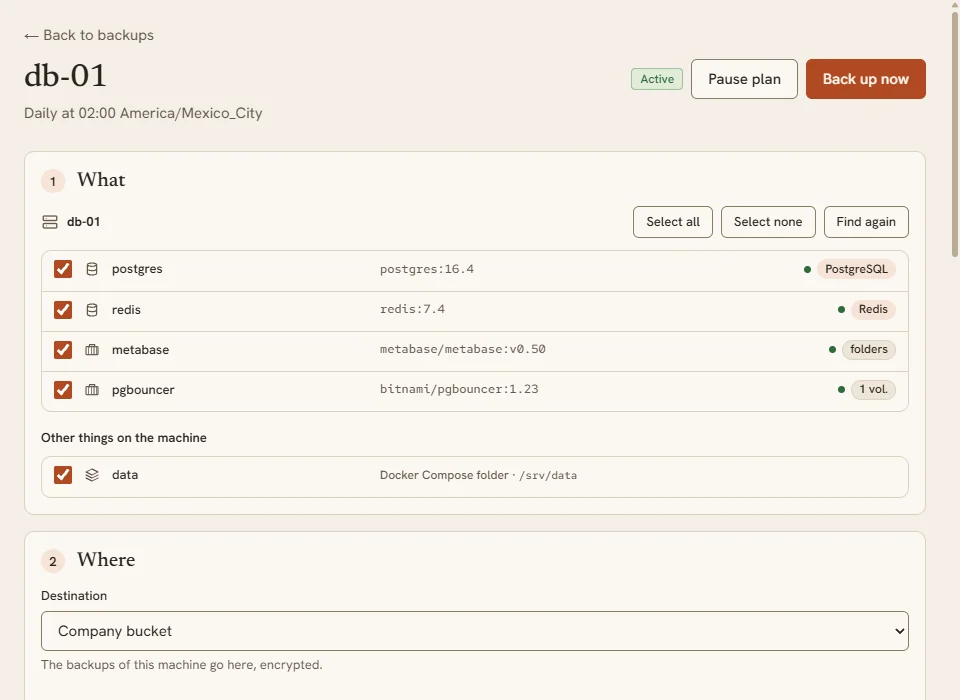
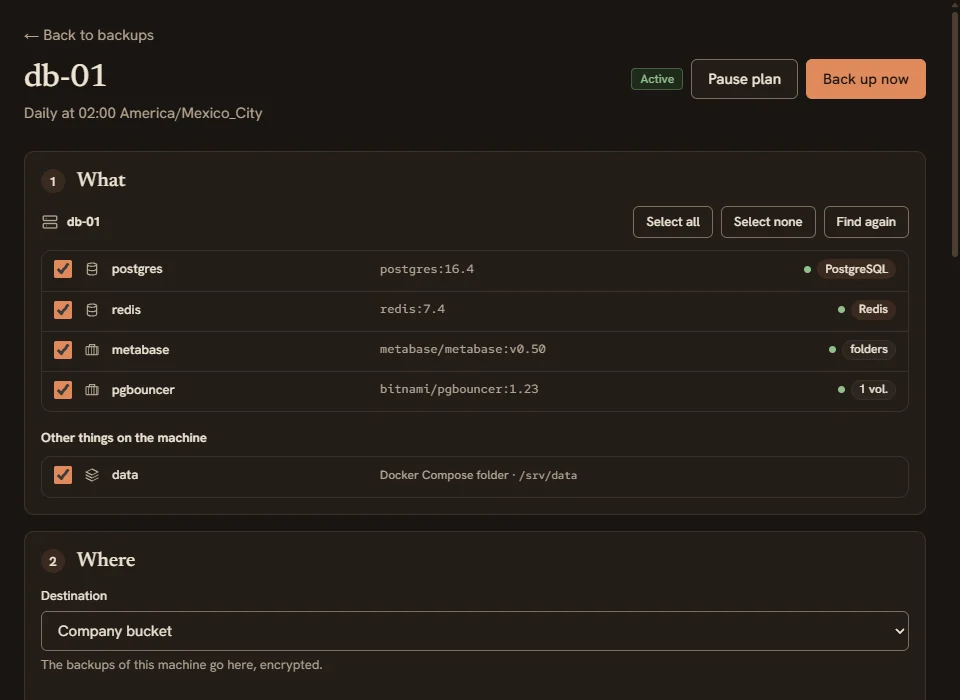
- What
- The agent looks for PostgreSQL, MySQL or MariaDB, MongoDB and Redis, Docker containers and volumes, and Docker Compose folders. Click Find again to search again. A database is saved with its own dump tool, for example
pg_dumpall, so the copy is consistent while it runs. - Where
- The destination.
- How
- For each container that you chose, pick what Kosken saves: database dump, its folders, a volume, and how it was started. A container marked Database not chosen is chosen without its dump. More options: extra folders, excludes, upload limit has Extra paths (up to 50 absolute paths), Excludes and Upload limit (KiB/s).
- When
- Daily, Weekly (with a Day) or Manual only, at a Time in a Timezone. The default time is 03:00. Under Keep, set how many Daily, Weekly and Monthly backups stay. The defaults are 7, 4 and 6. Older ones are removed after each backup. The latest backup of each source always stays.
In the tab Machines you can also change the destination and the schedule of each machine from the list. Pause plan stops the scheduled backups of a machine. Resume starts them again.
Encryption
The agent encrypts the data on each machine with restic before it leaves the machine. The storage provider sees only encrypted data. Kosken keeps the password of each repository and the S3 secret key encrypted, and sends them to a machine only inside an order, sealed for the executor of that machine. A person who controls the running platform could read them. The recovery kit lets you read the backups without Kosken. For the security model, see the whitepaper.
A run: live progress and history
While a backup runs, the backup page of the machine shows Backup in progress with the progress lines from the machine. The card Repository shows the Location, the state, the Size at the destination, the Last prune and the Last check. Kosken prunes and checks each repository once a week. When a check fails, click Check again after you fix the cause.
The list Runs shows each run with its Trigger: Scheduled, Manual or Before restore. The state of a run is one of these:
- Succeeded: every source succeeded.
- Partial: some sources failed.
- Failed: every source failed, or the repository did not open.
- Missed: the machine was offline or frozen at the time. When it comes back online within 6 hours, the backup starts then.
- Queued, Running or Skipped.
The tab History of the Backups page lists each backup of each source, with its machine, state, size and time. Filter it by machine.
Restore a backup
- In the tab History, click Restore on a backup that succeeded.
- Choose the Target:
- To a folder: writes the files to a new folder under
/var/lib/kosken/restore. Nothing else changes. Choose any Machine. - In place: replaces the data on the same machine. Kosken backs it up first, so you can undo the restore.
- On another machine: replaces the same data on another machine, for example after a disk failure. Pick it in Machine. That machine needs a plan with one finished backup, because Kosken saves its data first.
- To a folder: writes the files to a new folder under
- For a path, keep or clear Remove files that are not in the backup.
- Type the name of the source to confirm.
- Click Ask for the restore.
A restore in place or to another machine replaces data and stops the containers or the service that use it while it runs. It asks you to confirm with your second factor, and it goes to Approvals. A maintenance window covers the machine during the restore. The tab Restores shows each restore with its state and Open the request. One backup or restore runs on a machine at a time.
To undo an in-place restore, restore the backup with the trigger Before restore.
Get back one file
A restore takes a whole source. To get back one file, restore the source To a folder, then copy the file you need from the new folder under /var/lib/kosken/restore. Nothing else on the machine changes.
The recovery kit
The recovery kit is a text file with the repository passwords and the restic commands to restore without Kosken. It does not hold the S3 keys or the SFTP keys. After the first backup, the backup page of the machine asks you to download it. On the destination page, click Download the recovery kit. Keep the file in a safe place. Without it, nobody can read the backups if Kosken is gone.
Delete the backups of a machine on a receiver
For a destination of the kind Another machine, the backup page of the machine has Delete the backups of this machine on the receiver. It removes the user, the key and the folder of this machine on the receiver. Type the machine name to confirm. Another writer approves it, or you confirm who you are when you are the only writer.
Something here does not match the app? Tell us