 Kosken
Quickstart: your first machine online
Make an account, create a workspace and connect your first Linux machine to Kosken.
On this page
After this guide you have an account, a workspace and one Linux machine that reports to Kosken.
Before you start
- A Linux machine with systemd, on an amd64 or arm64 CPU. The full list is in Requirements.
- A shell on that machine as root, or as a user who can use
sudo. - An email address that you can read now.
Make an account
- Open app.kosken.ai/signup.
- Type your Name, your Email and a Password of 12 characters or more.
- Click Sign up. The app shows Check your email to verify the account.
- Open the email from Kosken and click the link. The app shows Email verified.
- Type your email and password, then click Log in.
If the page shows Continue with Google or Continue with Microsoft, you can use that account instead of a password. See Sign in.
Confirm your email first. Kosken does not create a workspace for an account with an email that is not verified.
Create a workspace
After you log in, the Workspaces page opens. With no workspace, it shows No workspaces yet.
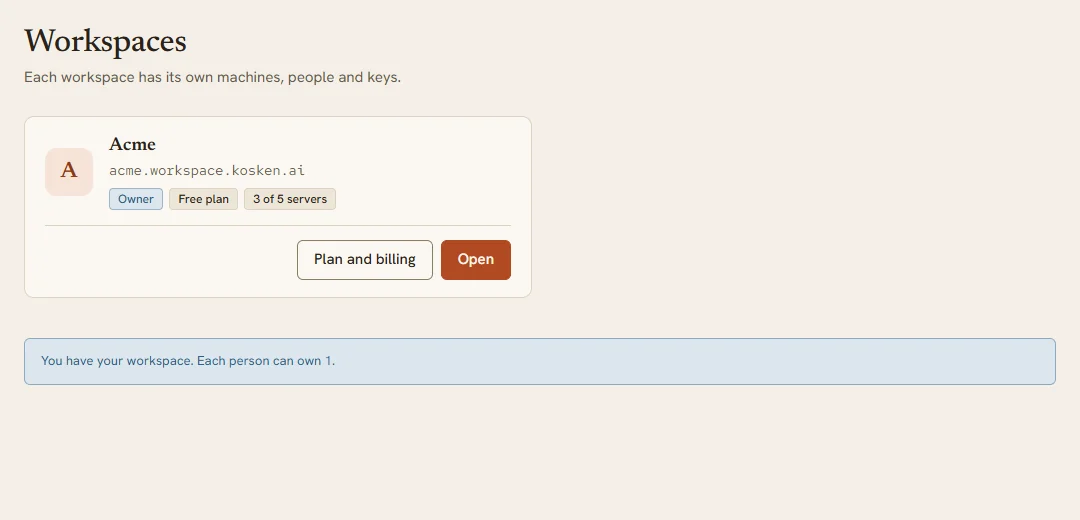
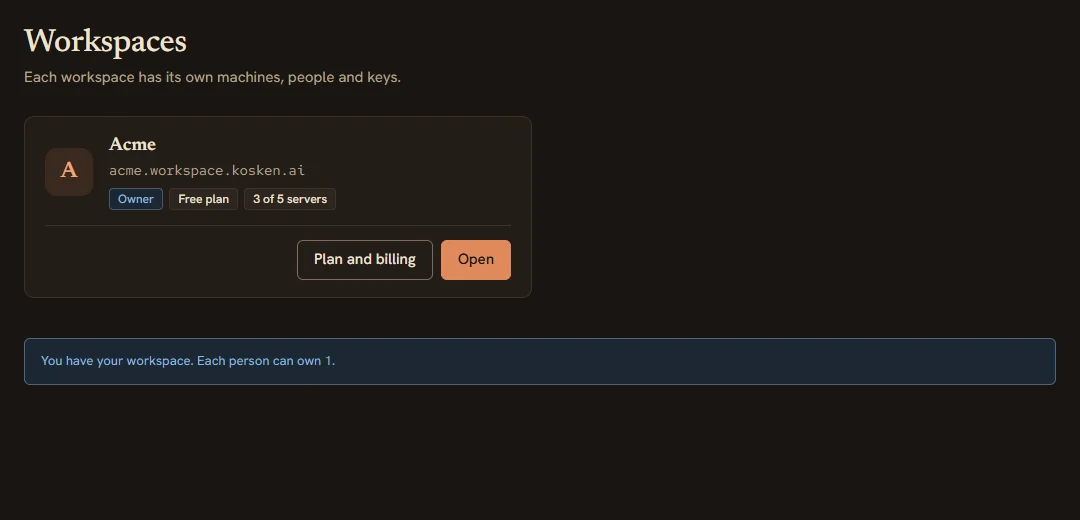
- In Create workspace, type a Name, for example
Acme. - Optional: type an Address, for example
acme. If you leave it empty, Kosken makes one from the name. - Click Create workspace.
Kosken opens the new workspace at its address, for example acme.workspace.kosken.ai. You are its owner. See Workspaces for the address rules and for more workspaces.
Connect your first machine
The Overview of a new workspace shows the card Start here. You need write access. The owner has it.
- Click Connect machine. The same button is on the Machines page.
- Type a Name for the machine, for example
web-01. - Optional: type an Environment, for example
production, and Roles, for exampleweb. - Keep How Kosken reaches this machine as it is. The Agent is always on. For SSH or AWS SSM, see Machines with no agent.
- Click Connect machine.
The next page shows the install command. The key in the command is shown one time, and it expires one hour after Kosken makes it. If the app shows Your plan limit is reached., see Plan and billing.
Run the install command
- Click Copy.
- Open a shell on the machine.
- Paste the command and run it. It has this form:
curl -fsSL https://acme.workspace.kosken.ai/enroll/<key> | sudo sh - Wait for the last line:
==> Done. The machine appears in Kosken in a few seconds. - In Kosken, click Done.
To read the script before you run it, and to see what it installs, go to Install the agent.
See the machine come online
The page of the machine opens. Its state is Pending until the agent connects. Then the state changes to Online. The page updates by itself.
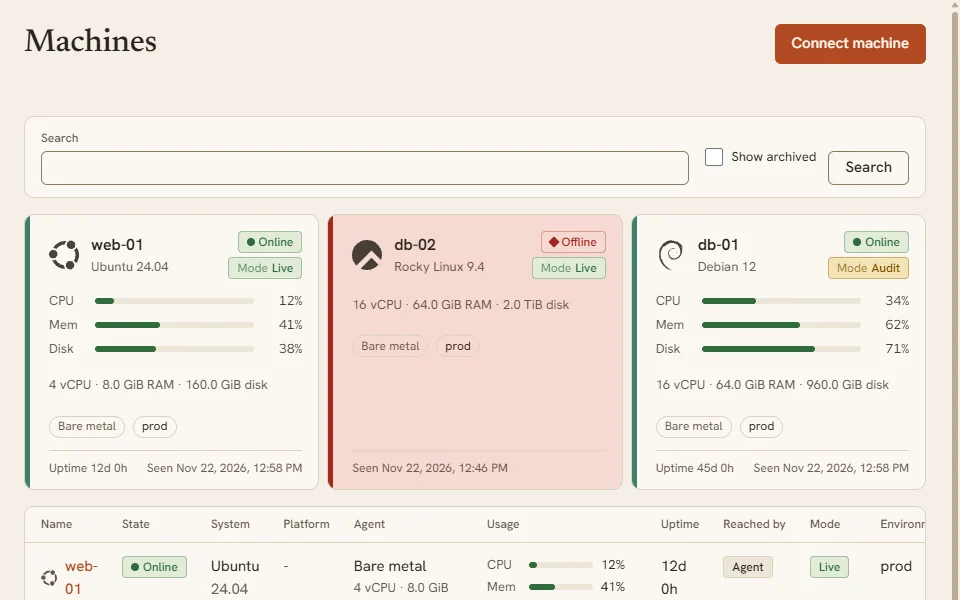
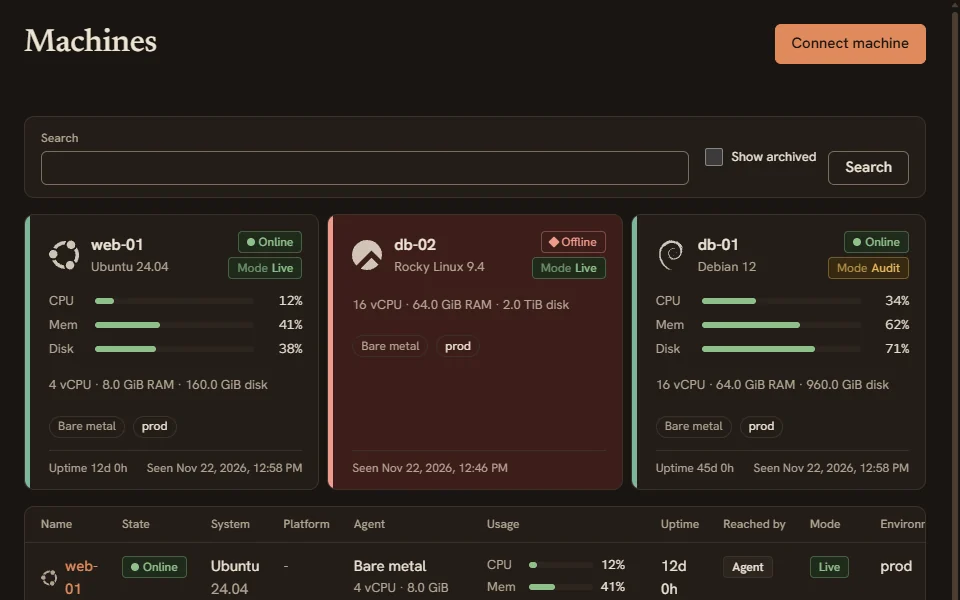
The Machines page now lists web-01 with its operating system, the version of the agent and the mode Audit.
If the state stays Pending:
- Check the output of the command on the machine for a line that starts with
error:. - Run the checks in Check that the agent runs.
- If the page shows The install command expired., click New enrollment key and run the new command.
Next steps
- Monitors. Each workspace gets monitors for the disk use of
/, memory, CPU, load and failed systemd units. They need no setup. To watch a service, a port, a URL or a container, see Monitors. - Model key. Kosken uses your own key to find the cause of an incident. Without a key, the stages that use a model cannot run. See Your AI model key.
- Modes. The machine starts in audit mode: Kosken reads and reports, and changes nothing. See Modes to move it to shadow and live.
- People. Invite your team. See Members and roles.
Something here does not match the app? Tell us