 Kosken
Automation
Let safe recipes run without approval: automatic rules with limits, trust by role, trust on one machine, and the freeze of the workspace.
On this page
After you read this guide, you can let a safe recipe run without an approval, set limits on it, and stop all automation at once.
Let a recipe run without approval
By default, every change that is not read-only waits for a person on the Approvals page. Read-only recipes always run without an approval. To let one recipe run by itself:
- Open Recipes and open the recipe, for example
docker.start. - Find the card Automatic changes.
- Click Run without approval and confirm.
This makes a rule with no limits: every machine in live mode, any value of the parameters, with no limit per hour. The recipe page then shows Runs without approval (automatic rule). To set limits instead, click Add a rule with limits.
Only an owner of the workspace sees these buttons. A recipe of critical risk, or one with the tag reboot or data_loss, never runs by a rule, so its page has no such card.
Automatic rules with limits
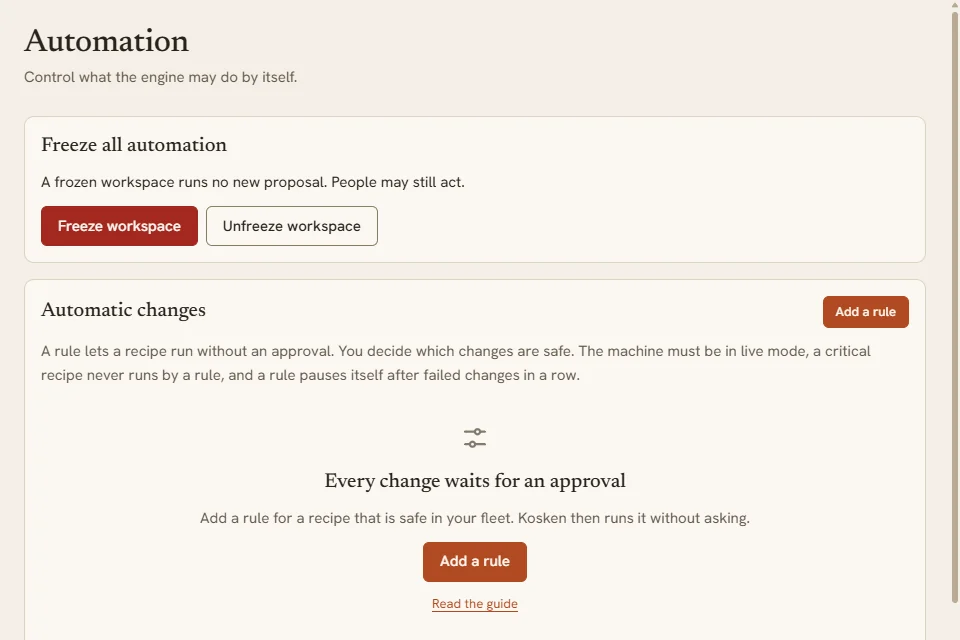
Open Automation in the sidebar. The card Automatic changes lists the rules. Click Add a rule to make one. The form has these fields:
- Recipe
- The recipe that the rule covers. Read-only and critical recipes are not in the list.
- Allowed values
- One line for each value, as
name=value, for examplecontainer=web. Two lines with the same name allow two values. A parameter that is not here can have any value. - Environments and Roles
- Names separated with commas, for example
productionorwebsite, db. They match the environment and the roles in the settings of each machine. Empty means any. - Machines
- Choose machines by name, for example
web-01. Empty means any machine. - Requests from
- Incidents: the diagnosis proposed the change. Chat: the agent asked for it for a person. Forms: a person asked with a form. None checked means incidents and forms. A change from the chat runs by a rule only when the rule has Chat checked.
- Note
- Why the change is safe, in your words. Up to 500 characters.
A change must match every limit of the rule. The list shows each rule with its limits, the changes in the last hour, and its state: Active or Paused.
Checks that still apply
A rule replaces the approval of a person, and a change that a rule covers never waits for an approval. It runs also when the Guardian raises the risk, even to critical, when the safety classifier sees a risk or gives no valid answer, and with no limit per hour. Kosken still checks each change: the recipe is signed, the parameters pass their checks, the verify step runs, and a failed verification rolls back when the recipe can. A rule does not run a change when:
- the machine is in audit or shadow mode, or the machine or the workspace is frozen;
- the safety classifier blocks the change as certain harm: Kosken denies it;
- a note of the machine forbids the change: Kosken denies it, because the note is the more specific decision of a person.
The incident timeline says why the rule did not run a change. The whitepaper describes the gates.
Pause, resume and delete a rule
After 3 failed changes in a row, a rule pauses itself. The list then shows Paused after failed changes. Check the incidents, then resume it.
- Pause stops the rule. The changes of the recipe wait for an approval again.
- Resume starts the rule again and sets its count of failures to zero.
- Edit opens the form. A save also sets the count of failures to zero.
- Delete removes the rule. The changes that it ran keep their record.
Trust by role
The card Trust by role gives a recipe trust on every machine that has a role. Click Add override, type the role in Roles and the recipe id in Recipe, then click Add override again.
Trust is narrower than a rule. With trust, a change runs without a person only when all of these are true: the machine is in live mode, the risk is low after the Guardian, the safety classifier passes with no warning, the recipe is not a mitigation, and the stored facts of the machine pass the precondition. Recipes of critical risk, or with the tag reboot or data_loss, never get trust.
Trust of a recipe on one machine
Kosken counts the decisions for each pair of one recipe and one machine. The machine page shows them in the tab Trust, with the Level of each recipe: none or approved. The tab appears after the first decision on that machine.
- After 10 approvals of live changes of the pair in 30 days, with no rejection, Kosken suggests trust. Then Promote works. On a machine in shadow mode, Promote moves the machine to live mode. On a machine in live mode, it sets the pair to
approved. - Demote sets the pair back to
none. - A rejection or a failed live run also sets the pair to
none.
For the modes, see Modes.
Freeze the workspace
Use a freeze when something goes wrong and you want no change on any machine. In the card Freeze all automation, click Freeze workspace.
- Every machine acts as if it is in audit mode. No new change runs, also not one that a person asks for.
- Kosken cancels the approval requests that wait.
- An order that already runs on a machine does not stop.
Click Unfreeze workspace to end the freeze. The page does not show whether the workspace is frozen now. Click the button that you need.
Who can do what
| Action | Who |
|---|---|
| See the page | Every member |
| Add, edit and delete a rule, Run without approval | An owner |
| Add and delete trust by role | An owner |
| Pause and resume a rule | Write access |
| Promote and Demote on a machine | Write access |
| Freeze and unfreeze the workspace | Write access |
For roles, see Members and roles.
Something here does not match the app? Tell us