 Kosken
Second factor and confirmation
Turn on an authenticator app, add passkeys, keep recovery codes, and confirm who you are before a risky change.
On this page
After you read this guide, you can protect your sign-in with an authenticator app or a passkey, keep recovery codes, and pass the confirmation that Kosken asks for before a risky change.
Turn on an authenticator app
An authenticator app makes a new 6-digit code every 30 seconds. Kosken asks for the code when you sign in.
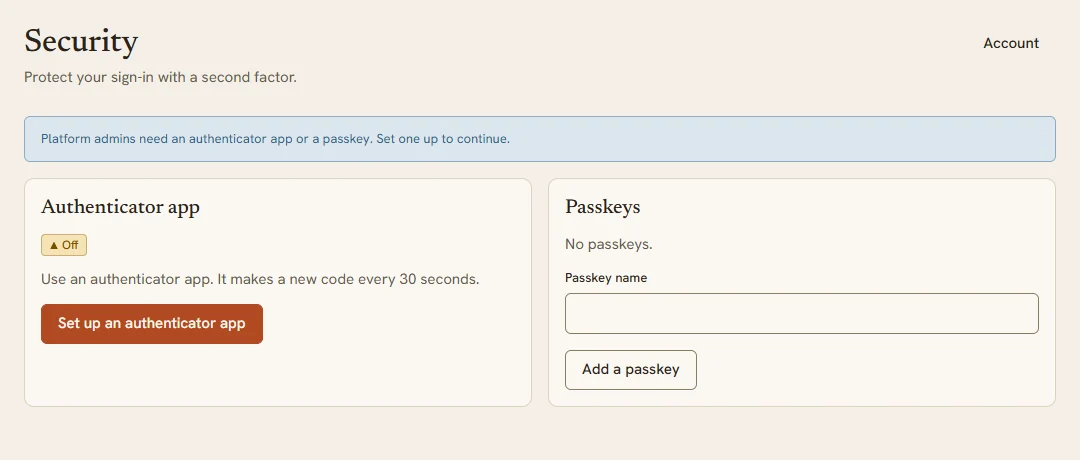
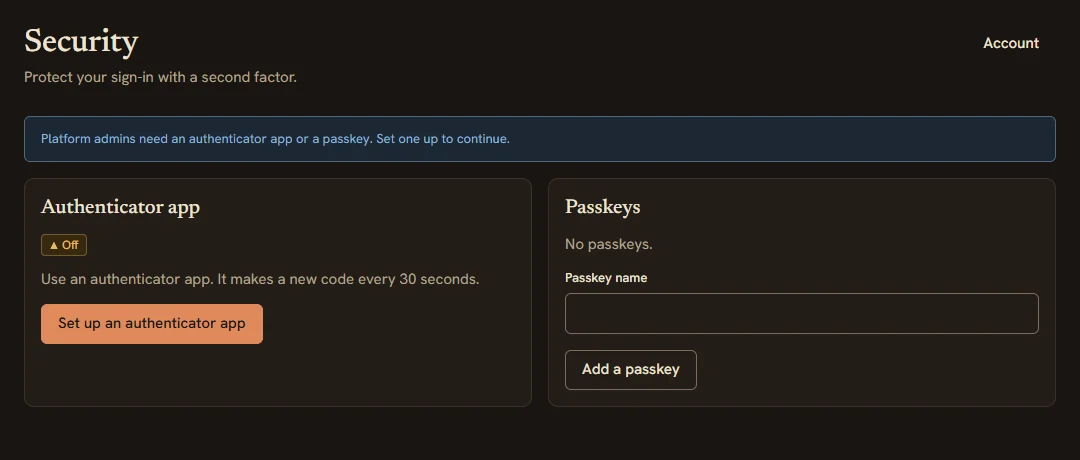
- Open the account menu at the top right, select Account, then select Security.
- In the Authenticator app card, select Set up an authenticator app.
- Scan the QR code with your authenticator app. If you cannot scan it, select Copy and add the key to the app by hand.
- In Code, type the code that the app shows.
- Select Confirm. The Recovery codes page opens.
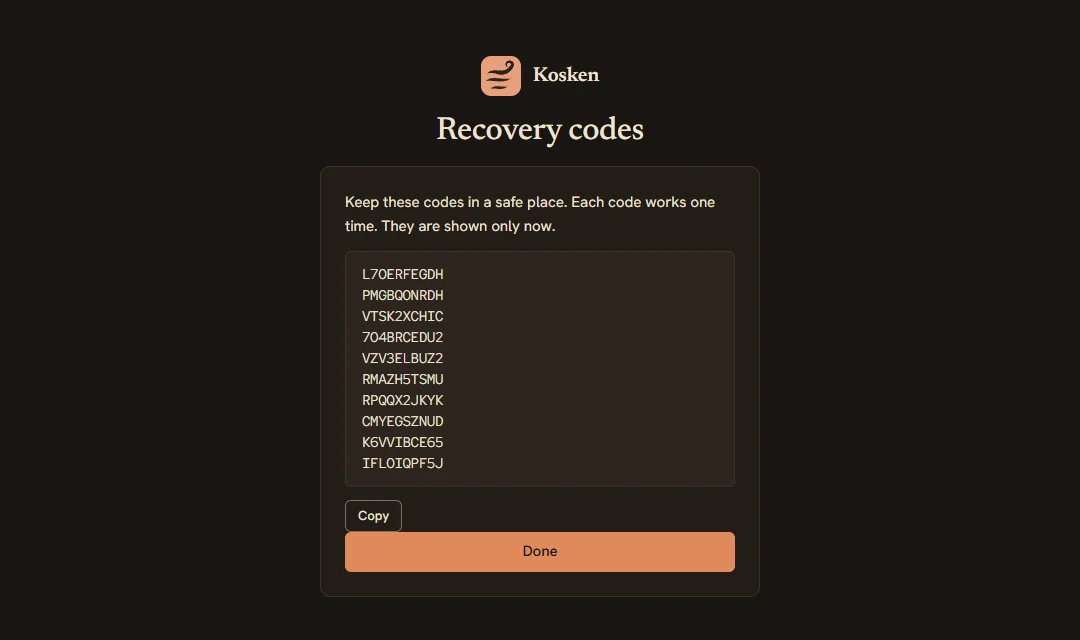
- Copy the recovery codes and keep them in a safe place. Then select Done.
The card now shows On. Kosken sends you a notice by email.
Recovery codes
You get 10 recovery codes when you turn on the authenticator app. Each code works one time. Kosken shows them only once.
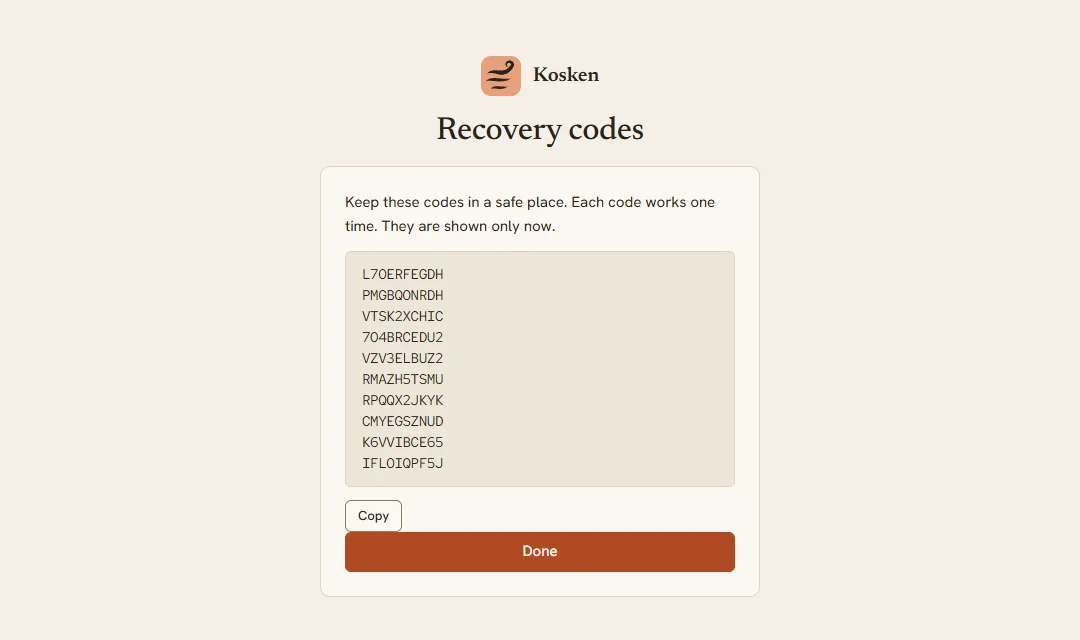
- Use a recovery code in place of the 6-digit code, when you sign in or when Kosken asks you to confirm.
- To get a new set, type a code in the Authenticator app card and select New recovery codes. The old codes stop working.
Keep the recovery codes away from the device with the authenticator app. If you lose both, you cannot finish a sign-in that asks for a code. Never send recovery codes to anyone, Kosken support included.
Sign in with a code
After you sign in with a password, Google or Microsoft, the Second factor page opens.
- In Code, type the code of your authenticator app, or a recovery code.
- Select Verify.
Finish this step within 5 minutes. A sign-in with a passkey asks for no code, because the passkey is already a second factor. After some failed codes, Kosken makes you wait before the next try.
Turn off the authenticator app
- Open Security.
- In the Authenticator app card, type a code.
- Select Turn off, and confirm.
Kosken deletes your recovery codes and sends you a notice by email.
Passkeys
A passkey lets you sign in with your device, for example with a fingerprint, a face scan or a security key. It is also a second factor.
- Open Security.
- In Passkey name, type a name, for example
Work laptop. - Select Add a passkey.
- Confirm on your device.
Kosken adds a passkey only in the 10 minutes after you confirm who you are. If the page says The passkey did not work., open /stepup?next=/account/security on the main app address, confirm, and add the passkey again.
The Passkeys card lists each passkey with its creation date and last use. To remove one, select Remove. This also needs a recent confirmation. Kosken refuses to remove your only way to sign in. You can have up to 10 passkeys.
The confirmation before a risky change
Before some actions, the Confirm it is you page opens:
- If you use an authenticator app, type its code or a recovery code.
- If you do not, type your password. If you have no password, set one on the Account page first. See The Account page.
Select Confirm. The confirmation lasts 10 minutes. A code that you type when you sign in counts as a confirmation too. Kosken does not keep the form that asked for the confirmation, because it can hold a secret. After you confirm, do the action again.
Kosken asks for the confirmation before actions like these:
- Delete a workspace. See Delete the workspace.
- Make a member an owner, remove an owner, or transfer ownership. See Owners.
- Approve a change with high or critical risk. You must approve such a change in the browser, not from a chat message. See Approvals.
- Restore a backup to its machine, or delete the backups of a machine. See Backups.
- Add or remove a passkey.
- Change your email, when you use an authenticator app.
A second factor and the free plan
When an owner of a workspace has an authenticator app or a passkey, the free plan of the workspace gets 2 more servers. Single sign-on also counts when the identity provider checked a second factor. If the last such owner turns it off, the 2 servers go at once. See The free plan.
Something here does not match the app? Tell us