 Kosken
Monitors
Add a monitor to one or many machines, choose how many failed checks open an incident, and edit, pause or delete it.
On this page
This guide shows how to add a monitor to one or many machines, choose when it opens an incident, and edit, pause or delete it.
Add a monitor
You need write access.
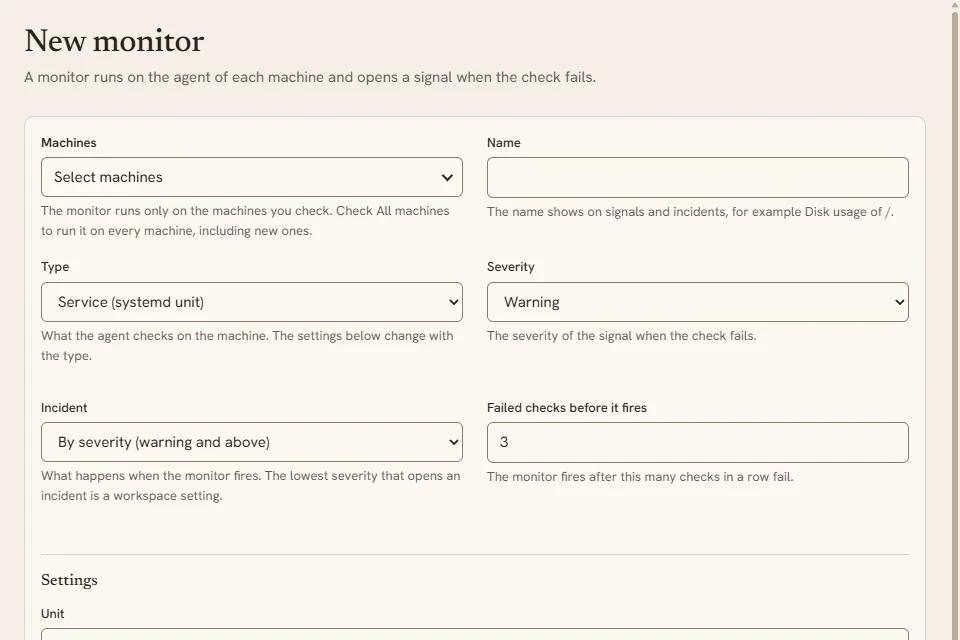
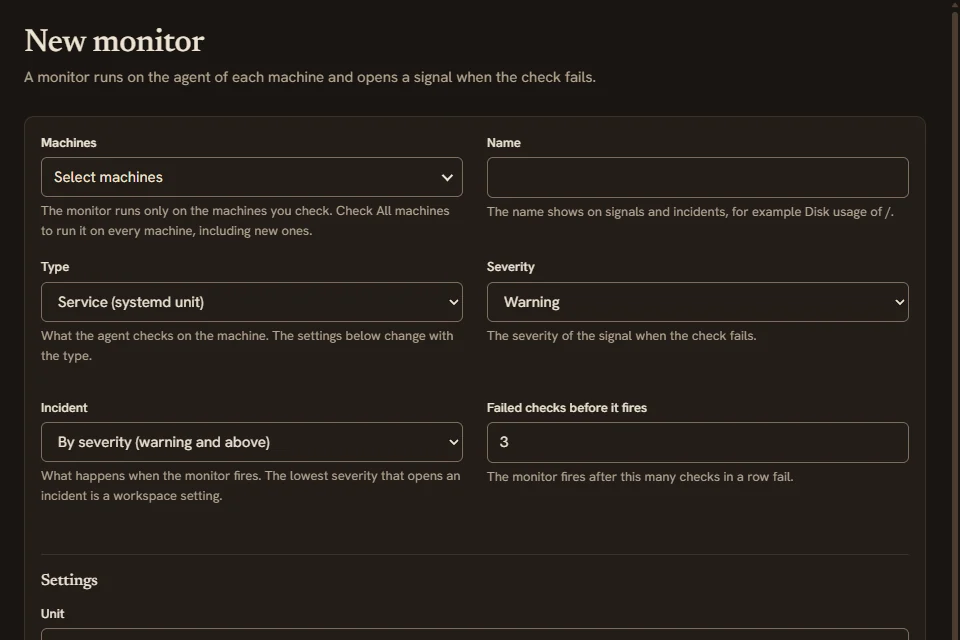
- Open the machine and select the tab Monitors.
- Select Add monitor. The form opens with this machine already selected. You can also start from Signals, tab Monitors, Add monitor.
- In Machines, check the machines that the monitor watches.
- Type a Name, for example
Disk usage of /data. Signals and incidents show this name. - Choose the Type. The fields below Settings change with the type.
- Choose the Severity: Info, Warning or Critical. The default is Warning.
- Choose the Incident option (see When a monitor opens an incident).
- Set Failed checks before it fires. The default is 3.
- Fill the fields under Settings.
- Keep Enabled checked and select Save.
Kosken sends the monitor to the agent of each selected machine in a signed configuration. The agent runs the check on the machine.
Monitor types
| Type | The check fails when |
|---|---|
| Service (systemd unit) | The unit is not active. |
| Port | A TCP connection to the host and port does not open. |
| URL | A GET request does not return the expected HTTP status. |
| Container | A Docker container is down, unhealthy, or restarts too often. |
| Disk | The used space or the used inodes of a mount point pass a limit. |
| CPU, Memory | The average use over a time window passes a limit. |
| Load average | The load average for each CPU passes a limit. |
| Failed systemd units | More units fail than the count that you allow. |
| Log pattern | Too many lines of a unit log match a pattern in a time window. |
| Certificate | A certificate file or endpoint expires in fewer days than the limit. |
| Read-only recipe | A read-only recipe does not succeed with exit code 0. |
Each field, its values and its default are in Monitor kinds.
When a monitor opens an incident
- The agent runs every monitor with each heartbeat. A heartbeat comes every 15 seconds by default.
- The monitor fires when the number of checks in Failed checks before it fires fail in a row. The value is from 1 to 100. With 3, a failure must last about 45 seconds.
- A check that cannot run, for example a command that takes more than 5 seconds, counts as neither a failure nor a pass.
- A firing monitor clears after 2 passed checks in a row, by default.
- The checks of a paused machine count for nothing. See the Settings tab.
When the monitor fires, Kosken records a signal. The Incident option says what happens next:
- By severity
- The default. An incident opens when the severity of the monitor is the lowest severity that opens an incident, or higher. The option shows that severity, for example warning and above.
- Always open an incident
- Every firing opens an incident, at any severity.
- Never: record the signal only
- The signal shows in Signals, and no incident opens.
One monitor for many machines
- Check more than one machine in Machines. The monitor runs on each one, and each machine fires on its own.
- Check All machines to run it on every machine, also on machines that you connect later.
- On Signals, tab Monitors, the column Machines shows where each monitor runs.
- To make a similar monitor, select Duplicate, change what differs, and select Save.
Each workspace starts with five monitors on all machines: Disk usage of /, Memory use, CPU use, Failed systemd units and Load average. You can edit or delete them. A deleted one does not come back.
Monitors do not run on a machine that Kosken reaches only through a reach host. See Machines with no agent.
Edit a monitor
- Select Edit on the tab Monitors of a machine, or on Signals, tab Monitors.
- Change the fields.
- Select Save. Kosken sends the new configuration to the machines that the monitor watched before and after the change.
Pause a monitor
On Signals, tab Monitors, select Disable. The state changes to Disabled. A disabled monitor stays in the list and does not run. Select Enable to start it again. You can also clear Enabled in the form.
Delete a monitor
- Open Signals, tab Monitors.
- Select Delete on the row of the monitor.
- Confirm Delete this item?.
A signal that the monitor holds open is resolved.
Something here does not match the app? Tell us