 Kosken
Members and roles
Invite a person to a workspace, change the access of a member, add or remove an owner, and remove a member.
On this page
After you read this guide, you can invite people to your workspace, give each one the right access, and manage the owners.
Invite a person
Only an owner can invite.
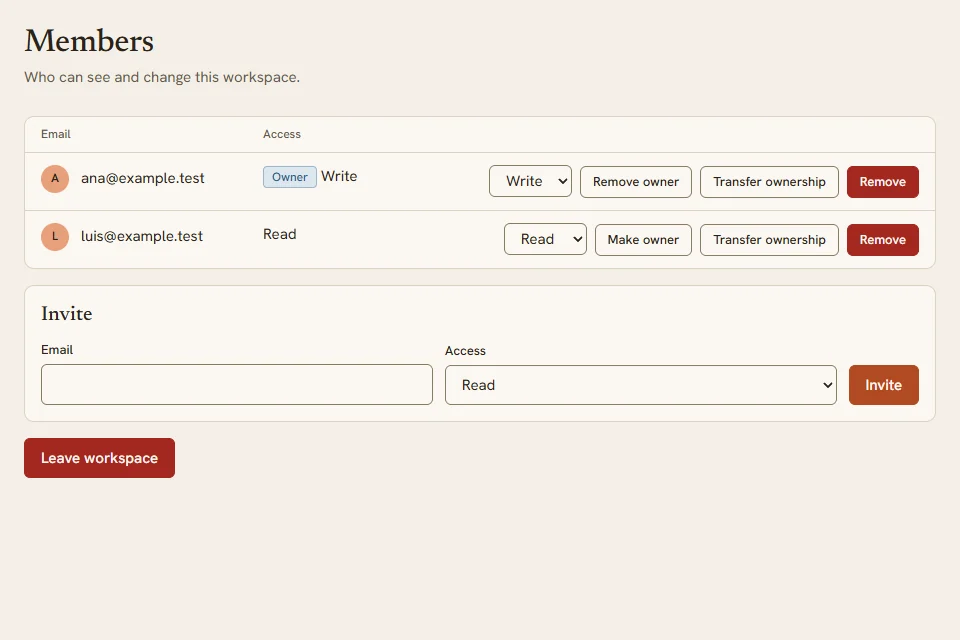
- Open the account menu at the top right, and select Members.
- In the Invite card, type the address in Email, for example
[email protected]. - In Access, select Read or Write.
- Select Invite.
Kosken sends an email with a link. The invitation shows in Open invitations with its access and the time it ends. An invitation works for 7 days. To cancel it, select Revoke.
- An invitation gives Read or Write. To make a person an owner, invite the person first, then see Owners.
- If the person is already a member, nothing changes.
- A workspace can have 50 open invitations, and can send 50 invitations in one day.
Accept an invitation
The person who gets the email does these steps:
- Open the link in the email.
- Sign in with the same email address that got the invitation. If you have no account, select Sign up and make one with that address.
- Verify your email address, if Kosken asks you to.
- On the Invitation page, read the address it shows, then select Accept invitation.
The workspace opens. The link stops working when the invitation ended, an owner revoked it, someone used it, or the workspace waits for deletion. It also fails when you sign in with another address, or when your address is not verified.
What each role can do
| Role | What the role can do |
|---|---|
| Read | Open every page of the workspace. Read incidents, approvals, recipes, signals and the audit log. Export incidents and the audit log. Connect your own chat account to a channel. |
| Write | All that Read can do. Also approve or reject a change, change machines, monitors and notes, review incidents, and save eval cases. |
| Owner | All that Write can do. Also manage members and invitations, Settings, the plan and billing, channels and their rules, and start eval runs. |
An owner always has Write access. A workspace can have more than one owner. The badge Owner shows next to the access of each owner.
Change the access of a member
- Open Members.
- In the row of the member, in Access, select Read or Write.
The change applies at once. You cannot change the access of an owner. Remove the owner mark first.
Owners
Only an owner can change the owners. Each of these actions asks you to confirm who you are first. See The confirmation before a risky change. After you confirm, Kosken returns you to Members. Select the button again.
- Make owner
- The member becomes an owner, with Write access. You stay an owner.
- Remove owner
- The member stops being an owner and keeps Write access. The last owner of a workspace cannot lose the mark.
- Transfer ownership
- The member becomes an owner. You stop being an owner and keep Write access.
Remove a member
- Open Members.
- In the row of the member, select Remove.
- Confirm.
The person loses access to the workspace at once. To remove an owner, select Remove owner first.
To leave a workspace yourself, select Leave workspace at the bottom of Members. Every member can do this. The last owner cannot leave: make another member an owner first, or delete the workspace. See Delete the workspace.
A teammate unlocks a free server
On the free plan, the first teammate who joins and verifies an email address unlocks one more server. See The free plan.
Something here does not match the app? Tell us