 Kosken
Incidents: from the signal to the fix
Follow an incident from the first signal to the fix: the list, the incident page, the states, and the actions that a person can take.
On this page
After you read this guide, you can find an incident, read what Kosken did on it, and cancel, reopen or delete it.
The path of an incident
An incident is one problem on one machine, with the full record of what Kosken did.
- A monitor fails a number of times in a row, or an alert arrives. Kosken opens an incident. A new signal of the same problem on the same machine joins the open incident.
- If a playbook fits the monitor, it runs read-only checks and gives a verdict. See Playbooks.
- Triage sets the severity and the category.
- The diagnosis reads evidence with read-only recipes and writes a cause.
- If a fix is needed, the model selects a recipe. The gates check it, and some cases ask a person. See Approvals.
- The executor on the machine runs the recipe and its verify step. Kosken then waits for the signals to clear.
- When the incident ends, Kosken writes the root cause report. When it closes, a person can say whether Kosken was right. See Review an incident.
The severity of an incident can go up while it is open. It never goes down.
Find an incident
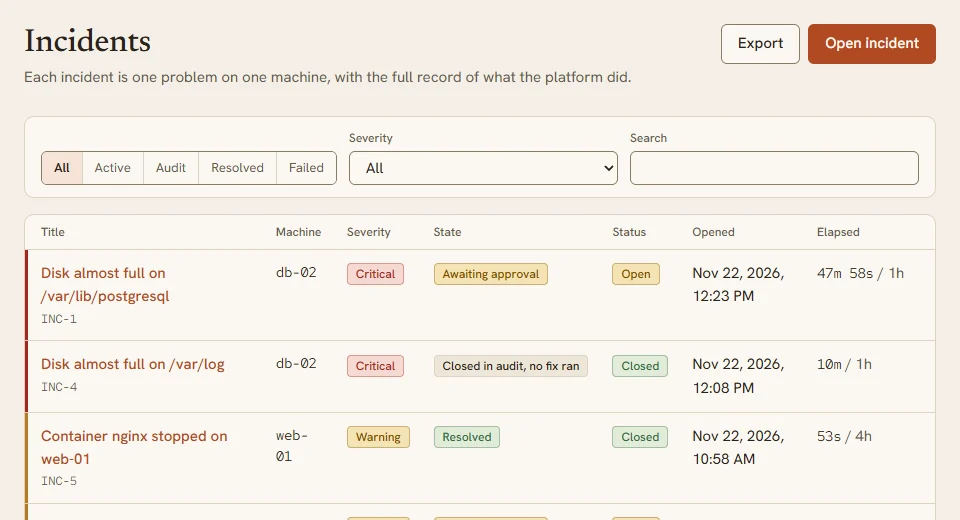
- In the sidebar, select Incidents.
- Select a group of states: All, Active, Audit, Resolved or Failed.
- To filter by severity, select a value in Severity.
- To find an incident by text, type in Search. The search reads the title, the summary, the number (for example
INC-12) and the comments.
Active shows every incident that is not closed. Resolved also shows Cleared by itself. Failed also shows Cancelled. An incident in Not a problem shows only under All.
The Elapsed column shows how long the incident is or was open. When the severity has a time target, the column shows the target, or Over target. See Service levels.
Export downloads the incidents of the last 30 days as an NDJSON file.
The incident page
The top of the page shows the severity, the category, the number, the state and the time that the incident is or was open. Below it, the Root cause report card shows the cause when the incident has ended.


Time by stage
Time by stage shows how long each stage took: Detection, Triage, Diagnosis, Waiting for a person, Run, Check of the fix, then Until closed or Open since then, and the Total. A stage that did not happen does not show. Detection shows only when the signal started before the incident opened.
The tabs
- Timeline
- Each entry in order: signals, triage, playbook, checks, diagnosis, proposals, gates, approvals, executions, verification, comments and state changes. Outside text marks text that came from outside Kosken, such as an alert. Show raw JSON shows the full entry.
- Evidence
- What Kosken saw: signals, read-only checks, links, memory and the playbook result.
- Actions
- What Kosken proposed, who approved it and what ran. Engine runs lists each run with its mode, model calls, checks and proposals.
- Report
- The full root cause report, the summary, the resolution, and the Token use of each stage.
- Review
- Shows when the incident is closed. See Review an incident.
The page updates by itself while Kosken works. Export at the top downloads the incident and its timeline as a JSON file.
The states
| State | Meaning |
|---|---|
| Open | The incident is new, or a person or a signal opened it again. |
| Triage | Kosken sets the severity and the category. |
| Diagnosis | Kosken looks for the cause. |
| Awaiting approval | A proposed recipe waits for a person. |
| Executing | The executor runs the recipe. |
| Verifying | Kosken checks the result of the fix. |
| Monitoring | No action runs now. Kosken watches the signals. The incident closes by itself when they clear. |
| Mitigated | A recipe stopped the harm, but the cause is still there. The incident stays open until a person fixes the cause and closes it. |
| Resolved | The fix ran, and the signals cleared. Closed. |
| Cleared by itself | The signals cleared and no action ran. Closed. |
| Classified (audit mode) | The machine is in audit mode. Kosken diagnosed with read-only checks and ran no change. Closed. |
| Not a problem | A playbook found a false positive or expected activity, with no model call. Closed. |
| Cancelled | A person cancelled the incident. Closed. |
| Failed | Kosken stopped and does not act more. A person must fix the cause. |
The Status column of the list shows Open or Closed. A failed incident is not closed: it counts as open until a person closes it.
What moves an incident
- Kosken moves the incident through the working states. The model cannot close an incident.
- After a fix and its verify step pass, the incident shows Monitoring while Kosken waits for the signals. If they clear, it goes to Resolved. If they do not clear in time, Kosken runs the rollback of the recipe once, when the recipe has one. Else the incident goes to Failed.
- When the same signal fires again soon after the incident closed, Kosken opens the same incident again.
- A comment on a Failed or Cleared by itself incident opens it again, and a new run reads the comment.
Actions you can take
You need write access for these actions. A member with read access sees the page only.
Add a comment
- Type the text in Comment.
- Select Add comment.
The model reads the comments of people as data. A comment never changes a rule or a gate. To give Kosken a fact that it must follow every time, write a note.
Cancel an incident
- In Actions, type a Reason. The reason is required.
- Select Cancel incident, then confirm.
Reopen an incident
This shows on a closed or failed incident.
- In Actions, type a Reason.
- Select Reopen.
Delete an incident
This shows on a closed or failed incident. Select Delete incident, then confirm. Kosken deletes the incident with its timeline and its memory. You cannot undo this. The audit log keeps one entry for the deletion.
Open an incident by hand
- On Incidents, select Open incident.
- Type a Title.
- Select the Machine and the Severity.
- Optional: in Read-only check (recipe ID), type the ID of a read-only recipe, for example
check.disk_usage. Kosken runs it at once. - Select Open incident.
A playbook verdict never closes an incident that a person opened by hand.
Something here does not match the app? Tell us