 Kosken
Approvals: decide before a change runs
Review a change that Kosken proposes, then approve it, approve a dry run only, or reject it. Read the reasons, expiry and two-person approval.
On this page
After you read this guide, you can review a change that waits for a person and approve it or reject it.
Approve or reject a change
You need write access to decide. A member with read access sees You have read access. A writer must decide.
- In the sidebar, select Approvals. The number beside it is the count of requests that wait.
- Find the request in the list and select Review.
- Read the risk, the reasons, the parameters and what the model saw. See What the page shows.
- Optional: type a Reason. Kosken writes it on the timeline of the incident.
- Optional: in Run through, select how the order reaches the machine. Agent is the default.
- Select one button:
- Approve and run: the executor runs the recipe and its verify step.
- Approve preview only: the executor runs only the dry run. Nothing changes on the machine. Use it only when Dry run available shows Yes.
- Reject: nothing runs.
Kosken opens Approvals again and shows Decision saved.
After a rejection, the incident goes back to diagnosis. The model reads your reason and can propose a different change.
If the page shows The request is out of date. Reload., the proposal changed after you opened it. Open the request again and decide on the new version. Your decision covers only the exact proposal that you saw.
The Approvals list
The list shows each request that waits, with its Recipe, Machine, Risk and the time it Expires. Dry run available under the recipe ID means that you can approve a preview. When nothing waits, the page says Nothing waits for you.
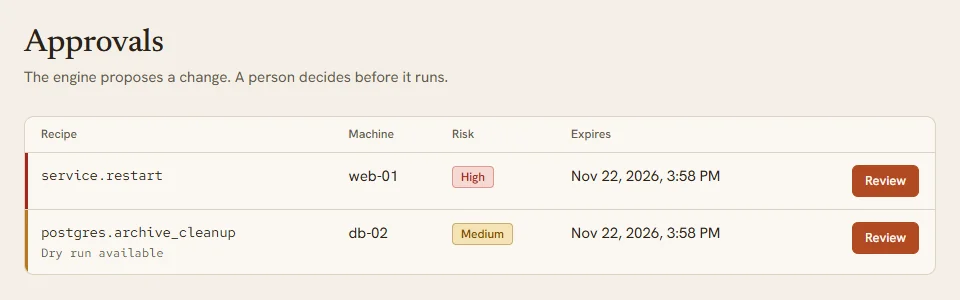
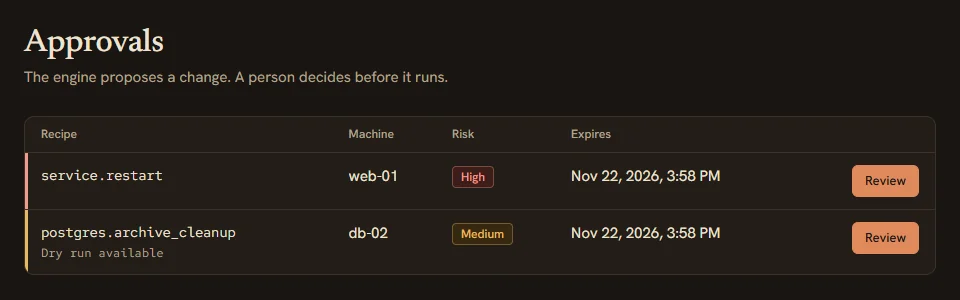
The Overview page also lists the open incidents that wait for an approval.
What the page shows
The title is the recipe ID, with the machine below it. Incident opens the incident of the request.
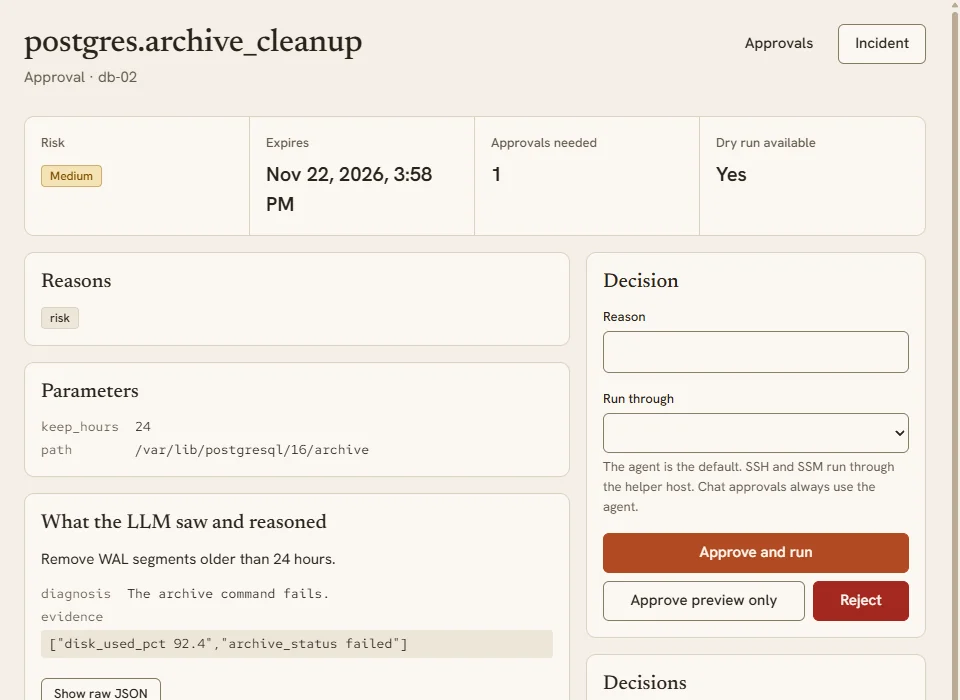
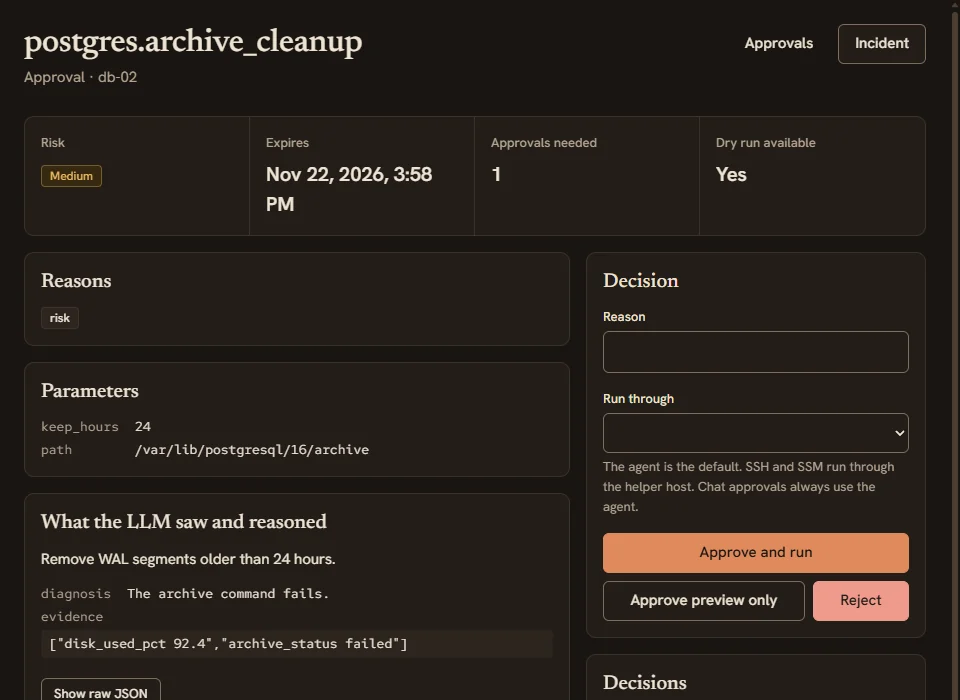
- Risk
- The effective risk: Low, Medium, High or Critical. It is the higher of the risk of the recipe and the risk that the Guardian gave.
- Expires
- The time after which the request can no longer be approved.
- Approvals needed
- 1 or 2. See Two-person approval.
- Dry run available
- Yes when the recipe has a dry run.
- Mitigation: it does not fix the cause
- Shows when the recipe stops the harm but leaves the cause. After it runs, the incident stays open as Mitigated until a person fixes the cause.
- Reasons
- Why a person must decide. See the table below.
- Parameters
- The values that the model filled for the recipe.
- What the LLM saw and reasoned
- The record that the approval covers: the incident, the machine and its mode, the recipe and its steps, the reason and the expected effect of the model, the answer of the Guardian, and the answer of the safety classifier. Show raw JSON shows all of it. The line at the end is the hash of this record.
- Decisions
- Each decision with its time, its reason and the channel where it was made.
Reasons
| Reason | Meaning |
|---|---|
shadow_mode | The machine is in shadow mode. A person approves each change. |
risk | The risk is above low. |
trust | The recipe has no trust on this machine. |
guardian | The Guardian raised the risk of the recipe. |
critical | The risk is critical. |
gate5 | The safety classifier did not give a valid answer. |
classifier_veto | The safety classifier sees a risk. |
host_data | The stored facts of the machine do not pass the precondition of the recipe. The executor checks it again on the machine. |
mitigation | The recipe stops the harm and does not fix the cause. |
note_conflict | The change goes against a note of this machine. See Notes. |
live_cap | The machine reached its limit of live changes in one hour. |
Each proposal goes through five gates before it reaches you. The Guardian can raise the risk and cannot lower it. The safety classifier reads the recipe and the machine, never the diagnosis. See the whitepaper.
Expiry and reminders
A request waits 24 hours by default. A request that nobody answers expires and never runs. Channels can send the events Approval requested, Approval reminder and Approval expired. See Channels.
When Kosken proposes a newer change on the same incident, the newer request replaces the one that waits.
Confirm it is you
By default, to approve a change of high or critical risk, you must confirm your identity again. When you approve, Kosken opens Confirm it is you and asks for your password or the code of your authenticator app. Then Kosken opens Approvals. Open the request and decide again. See Second factor.
You can reject any request without this step.
Two-person approval
A workspace can ask for two approvals from two different people for proposals of the model at a given risk. Two-person approval is off by default. When a request needs two, Approvals needed shows 2, and the Overview shows Needs a second person.
- After the first approval, Kosken shows Your approval is saved. A second approver must decide. Nothing runs yet.
- The second approval must come from a different person, and it must be the same kind: Approve and run or Approve preview only.
- One rejection from either person ends the request.
- When the workspace has fewer than two members with write access, one approval is enough, and it always needs the identity check above.
- A change that a person asked for by name needs one approval, and that person may give it.
Approve from a chat
Slack, Telegram and WhatsApp channels can show the buttons to approve and reject. An approval from a chat always runs through the agent. You cannot approve a request that needs the identity check from a chat. Open it in the browser. See Slack.
Something here does not match the app? Tell us