 Kosken
Tasks
Run read-only checks on machines and send instructions to the agent on a schedule, and read the jobs that run on the machines.
On this page
After you read this guide, you can run a check or an instruction to the agent on a schedule, read its runs, and see every scheduled job of your machines in one calendar.
Create a task
You need write access.
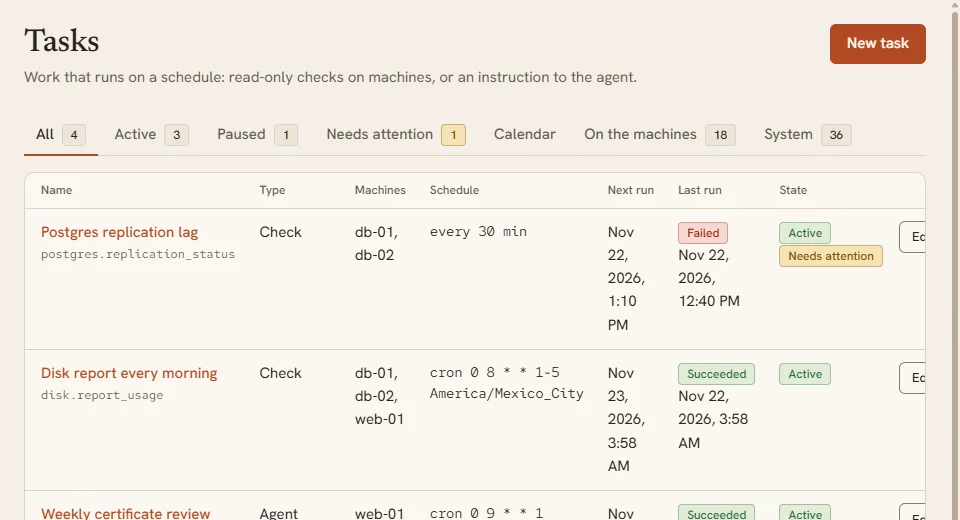
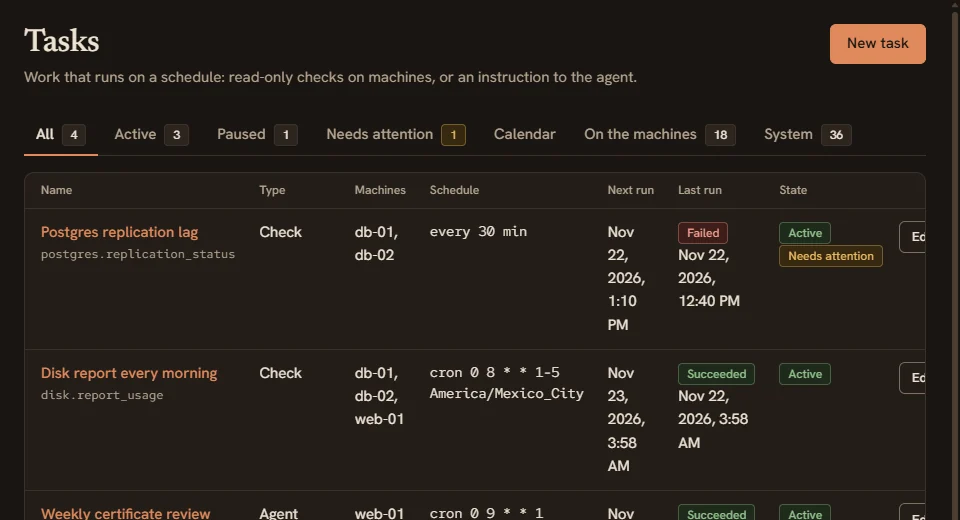
- Open Tasks in the sidebar.
- Click New task.
- In the tab General, type a Name, choose the Type and choose the Machines.
- In the tab What it does, choose a Recipe and its Parameters for a check, or write the Instruction for an agent instruction.
- In the tab Schedule, choose when it runs.
- Click Save.
You can also ask the agent in Ask to create a task. The name of a task is unique in the workspace and has up to 80 characters. A workspace has at most 50 tasks.
Check or agent instruction
- Check
- Runs one read-only recipe on 1 to 50 machines and needs no approval. Only read-only recipes are in the list. Write the Parameters one per line, as
name=value, for exampleunit=nginx.service. Kosken refuses parameters that the recipe does not accept on a machine. - Agent instruction
- Sends the text to the chat agent, as you write to it in Ask. It takes one machine or none. Name other machines in the text. The instruction has up to 4000 characters. It runs as the person who created the task, with the access that this person has at the time of the run. Each change that the agent asks for still needs the approval of a person.
The schedule
In Repeat, choose one of these:
- Cron expression: five fields, minute, hour, day of month, month and day of week. For example,
0 9 1 * *runs at 09:00 on day 1 of each month. While you type, the form shows the next run times. - Every N minutes: a number of Minutes, from 5 to 44640.
- One time: a Date and time in the future. After its run, the task changes to Paused.
Two runs must be at least 5 minutes apart. The Timezone applies to the cron expression and to the date. A new task starts with the timezone of your browser.
A task page and its runs
Click the name of a task to open its page. The card What it does shows the type, the machines and the recipe or the instruction. For an instruction, Open the chat opens the chat that the task writes to. The first run makes the chat. The card Schedule shows the Next run, the Last run and the Failures in a row.
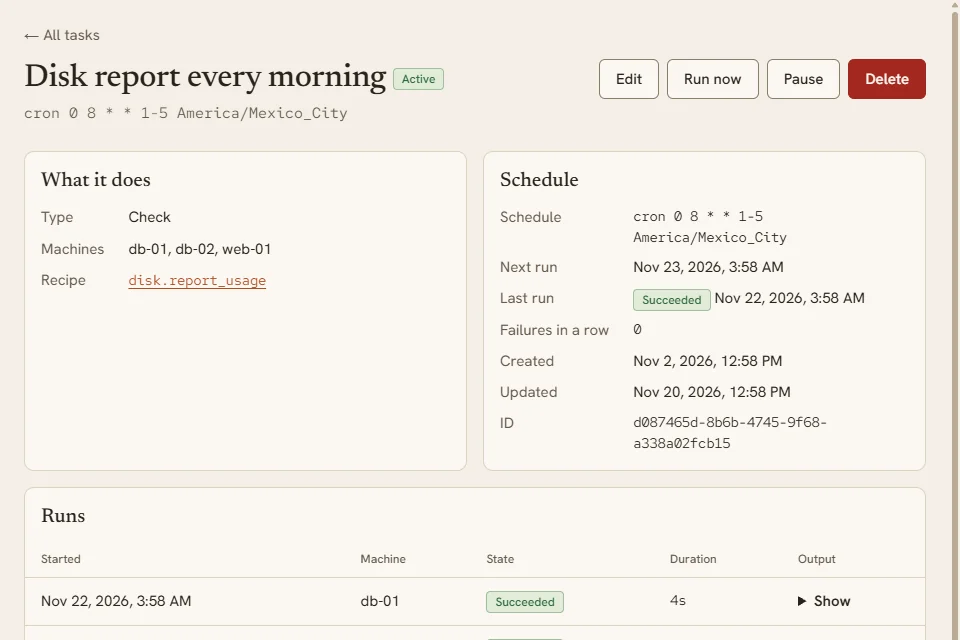
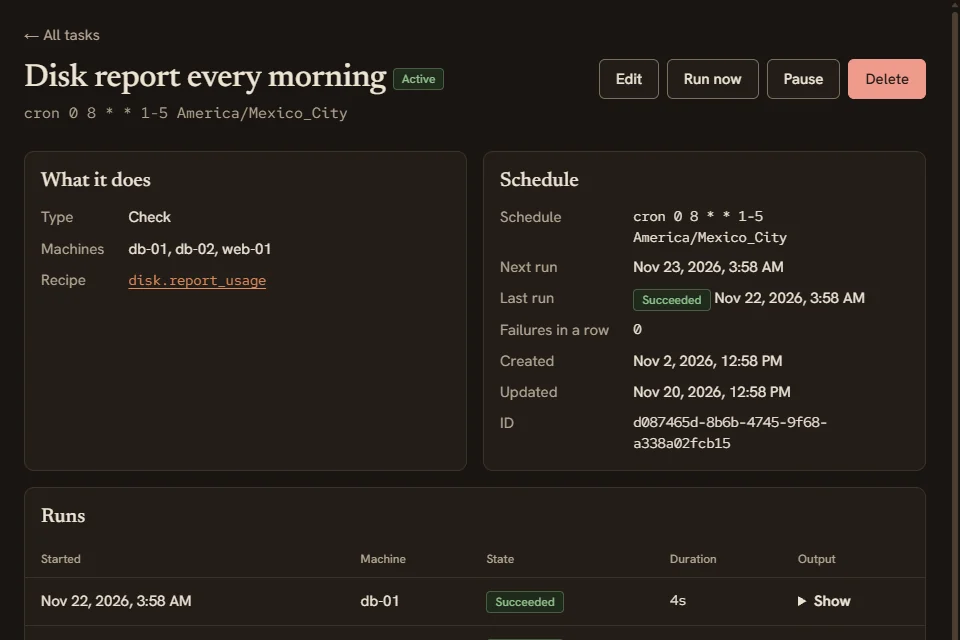
The list Runs shows each run with its machine, state, duration and Output. Click Show to read the output. A check makes one run for each machine, and its output is the output of the recipe, with secrets removed. An instruction makes one run, and Kosken waits up to 10 minutes for the answer of the agent. The state of a run is one of these:
- Succeeded or Failed.
- Skipped: the machine is archived, its monitoring is paused, or it is not online.
- Running.
Kosken keeps runs for 90 days. The buttons on the page and in the list are Edit, Run now, Pause or Resume, and Delete. A delete also removes the run history. When the agent asks to delete a task, the page shows The agent asked to delete this task. Nothing is deleted until you click Delete the task.
Tasks that need attention
After 3 failed runs in a row, a task shows Needs attention. The tab Needs attention of the list shows these tasks. One run that succeeds clears the mark. The tabs Active and Paused filter the list by state.
The calendar
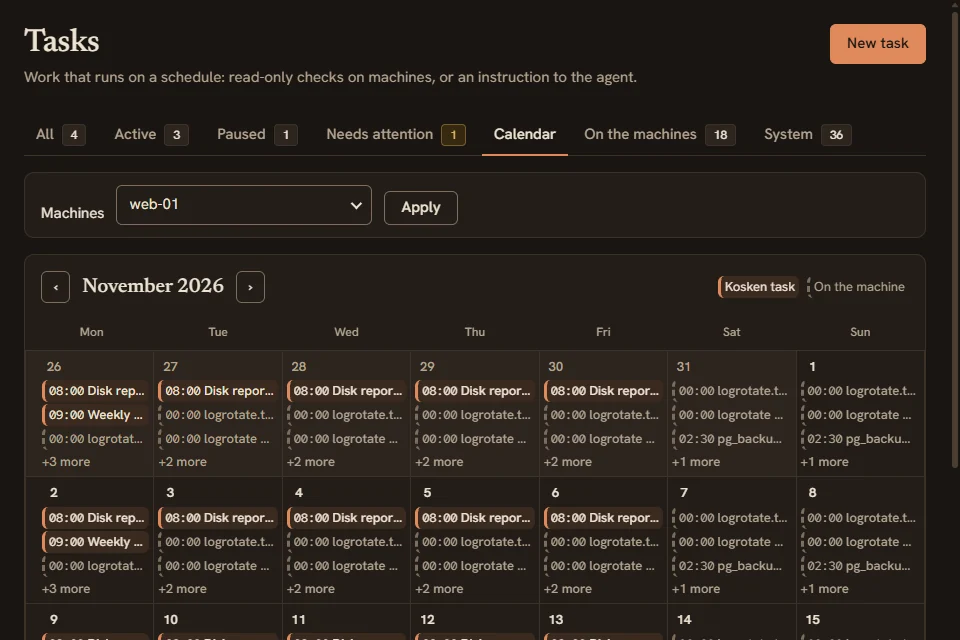
The tab Calendar shows one month. Each day lists the runs of that day. The legend marks each run as a Kosken task or a job On the machine. The arrows move to the month before and after. To see the jobs of some machines only, choose them in Machines and click Apply.
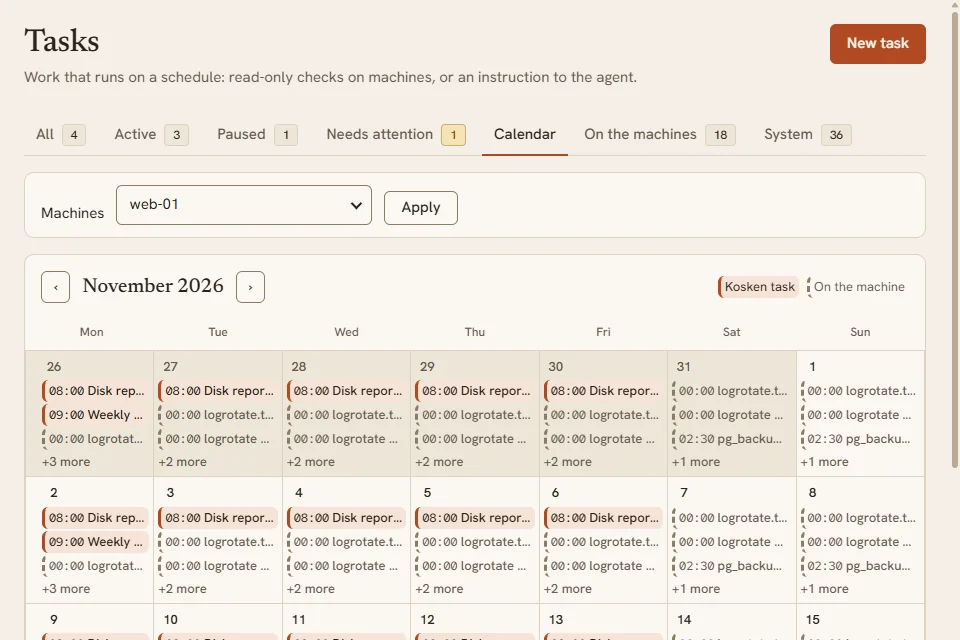
Jobs that run more often than every six hours do not show each run in the grid. The list Frequent jobs on the machines below the calendar shows them.
Jobs on the machines
The tab On the machines lists the timers and cron jobs that each machine runs by itself: systemd timers, crontab, /etc/cron.d, user crontabs, anacron and the cron.hourly, daily, weekly and monthly folders. The agent reads them with the facts of the machine. When the list is empty, update the agent of the machine. Use Machines and Apply to see one machine, for example db-01.
With write access, each row has buttons:
- A systemd timer: Pause or Resume, and Run now.
- A cron line: Edit, and Turn off or Turn on.
Each button sends a change to the machine. The list shows the change when the machine reports its jobs again. In Edit cron line you change the Schedule and the Command. The time zone is the zone of the machine. A change to a cron line is high risk: another person with write access must approve it on the Approvals page. When you are the only writer, it runs when you save it. The executor keeps a backup of the file and refuses the change if the line changed after Kosken read it.
System jobs
The tab System lists the jobs of Kosken itself, with their cron expression in UTC and the next run. They are Protected: nobody can change them.
Something here does not match the app? Tell us