 Kosken
Workspaces
Create a workspace, switch between workspaces, change the address, and delete a workspace.
On this page
After this guide you can create a workspace, open another workspace, change its address and delete it.
A workspace holds your machines, people, keys and rules. Each workspace has its own machines, people and keys, and its own address, for example acme.workspace.kosken.ai.
Create a workspace
- Open the Workspaces page. It opens after you log in. From inside a workspace, click the workspace name at the top, then click New workspace.
- In Create workspace, type a Name, for example
Acme. A name has 1 to 80 characters. - Optional: type an Address, for example
acme. If you leave it empty, Kosken makes one from the name. - Click Create workspace.
Kosken opens the new workspace. You are its owner. Your email must be verified first.
An address has 3 to 32 characters: lowercase letters, digits and single hyphens. It starts and ends with a letter or a digit. Some addresses are reserved. When the app shows This address is taken., choose another one.
How many workspaces you can own
Each person can own a limited number of workspaces. When you reach the limit, the Workspaces page hides the form and shows how many each person can own. See Limits.
The limit counts only the workspaces that you own. You can be a member of more workspaces when other people invite you. See Members and roles.
Switch between workspaces
- At the top of the page, click Workspace: and the name of the current workspace.
- In Switch workspace, click the workspace to open. A check mark shows the current one.
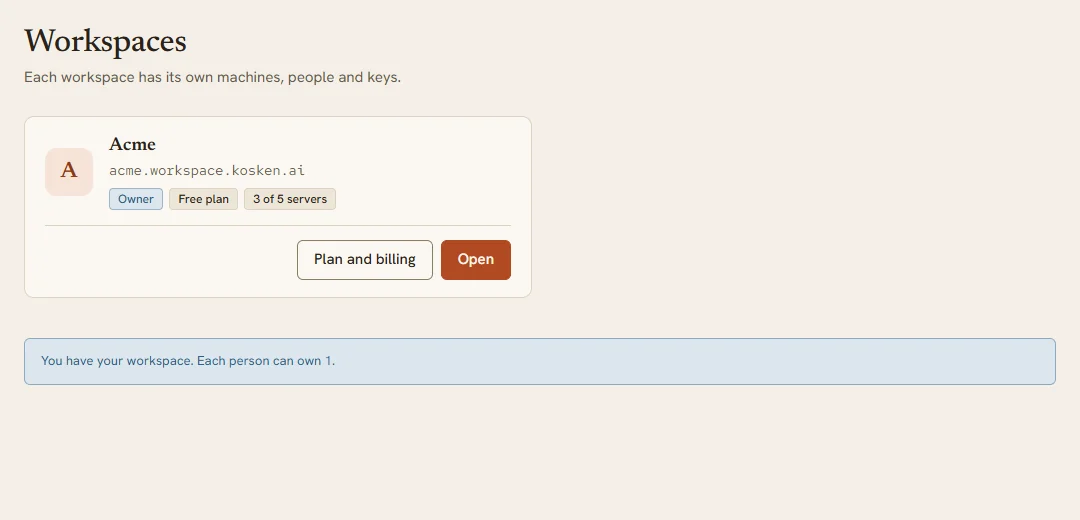
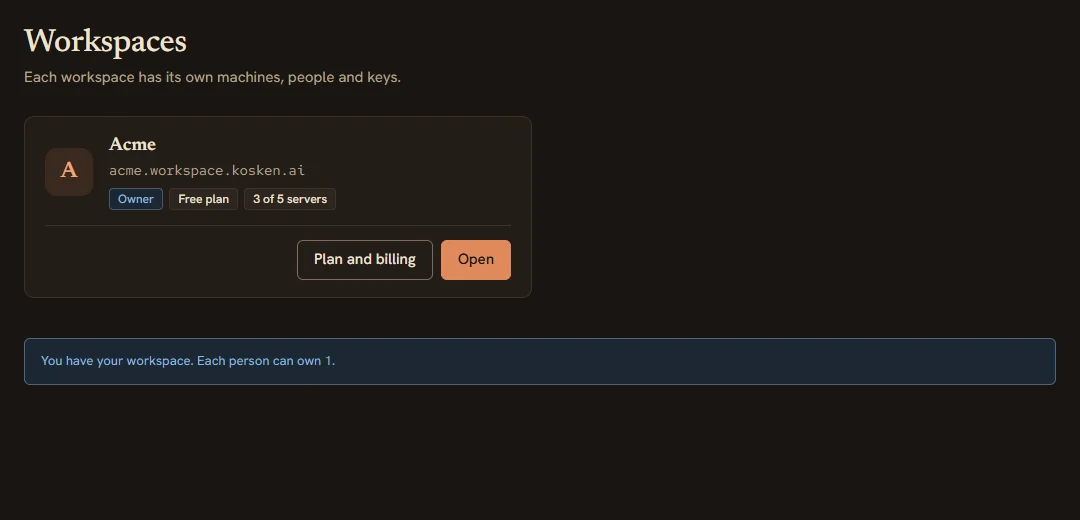
The Workspaces page also lists all your workspaces. Each card shows:
- The name and the address.
- Your role: Owner, or your access, Read or Write.
- The plan, for example Free plan or Pro plan, and the servers in use out of the limit, for example 3 of 5 servers.
- Plan and billing, for owners only. See Plan and billing.
- Open, to open the workspace.
Change the address
Only an owner can change the address.
- Click your name at the top right, then click Settings.
- In the General tab, type the new value in Address.
- Click Save.
Changing the address moves the workspace to a new host. The old host redirects. The install command of a new machine uses the new address.
Use your own domain
A workspace can also open at a domain of your own, for example ops.example.com, with a CNAME record. See Domains.
Delete a workspace
Only an owner can delete a workspace. Deletion starts a waiting period, and you can cancel in this period.
- Click your name at the top right, then click Settings.
- In the General tab, go to Delete workspace.
- In Type the address of the workspace to confirm, type the full address, for example
acme.workspace.kosken.ai. - Tick I understand that this deletes the workspace and its data.
- Click Delete workspace, then confirm.
Kosken can ask you to confirm who you are before it starts. See Second factor. Then the app shows Deletion started.
What happens:
- Machines are disconnected and stop to report.
- Incidents, signals, keys and members are deleted when the waiting period ends.
- Billing for this workspace stops.
To export your data before the end, see Your data.
Cancel a deletion
During the waiting period, the card of the workspace on the Workspaces page shows Deletes on and the date.
- Open the Workspaces page.
- On the card of the workspace, click Cancel deletion.
The workspace goes back to active. After the purge starts, the deletion cannot be cancelled.
Something here does not match the app? Tell us