 Kosken
AI Ops
See the GPUs of your machines, serve models with vLLM, benchmark them and let Kosken tune them with one button.
On this page
This guide shows what the AI Ops page and the GPU tab of a machine show, how to serve a model with vLLM, which GPU monitors Kosken adds, and what Kosken can tune on each machine. Two more guides cover Benchmarks and Optimize.
What the page shows
AI Ops shows in the sidebar when the agent finds a GPU on a machine. Kosken finds NVIDIA and AMD GPUs on bare metal, in virtual machines with the GPU passed through, and in containers that have GPU access. An integrated Intel GPU does not count.
| Tab | What it shows |
|---|---|
| Overview | The number of GPUs, the average use, the VRAM in use and the hottest GPU; every GPU with its use, VRAM and temperature; and the vLLM endpoints with their state. |
| Benchmarks | The benchmark runs of your endpoints. See Benchmarks. |
| Optimize | The runs of Optimize, with their goal, state and gain. See Optimize. |
The numbers come from the last heartbeat of each machine. A GPU whose driver tool does not answer shows No numbers.
Serving: deploy a model
An endpoint is a vLLM or SGLang server in a container on a GPU machine. Click Deploy a model on the AI Ops page, then:
- Pick the machine, the model server (vLLM or SGLang) and its version. The fields below change to the flags of the server you pick.
- Type a model: one of the catalog, which brings the flags that its recipe recommends, or any Hugging Face id. Click Use this model. A catalog model shows its variants and features as chips; a gated model needs a Hugging Face token (Access group).
- Kosken checks the fit: it reads the size of the weights and the attention shape of the model from Hugging Face, and the memory of the GPU from the last heartbeat. A bar shows the memory of the GPU: other processes, the weights, the runtime, the KV cache and what stays free. The numbers are an estimate; the server measures the real ones at start.
- Pick a profile. Kosken computes them for this machine and this model: Balanced (what the fit check proposes), Long context, Throughput and Low memory, each with its context, its requests at a time, the memory it takes and the flags it sets. A profile shows only when it differs from Balanced and fits. auto in requests at a time means that the server picks the number from the memory it has. Long context keeps the requests at a time of Balanced: the KV cache is paged, so a long request needs room for itself only, and the server queues the long requests that do not fit at the same time.
- Change single settings only when you need to. They are in groups (Memory and context, Execution, Model and tools, LoRA, Access, All flags), and the search finds a setting or a flag in every group. All flags lists every flag of the server and version that no other field sets, with its help and its default.
- Click Deploy. The machine pulls the image if it is missing, downloads the model, starts the server and waits until
/healthanswers. The progress shows on the page of the endpoint. Show the command shows the docker command before you deploy.
The Access group has the name, where the port listens (127.0.0.1 by default, so only the machine reaches it), the port, the optional API key and the Hugging Face token. The form proposes a port that no other endpoint of the machine uses. Generate makes a random key in the browser, copies it to the clipboard and shows it whole: save it then, because after the deploy Kosken seals it and shows it only on the Connect tab. The key and the token are sealed. The container gets them in its environment or in a config file, never on a command line. The key protects the /v1 paths only, so keep a port on all addresses behind a firewall.
When a start fails, the page shows the reason from the log of vLLM and what to change. When vLLM says how many sequences fit, one button deploys again with that number.
Versions: release, latest, nightly or another tag
Kosken runs the official image of vLLM or SGLang as the project publishes it and builds nothing. The Version field picks the tag:
- A release such as
v0.34.0orv0.5.23: Kosken has the flags reference of it, checks every flag against it, and Optimize works on it. A release never changes. - latest, and the nightly (
nightlyfor vLLM,devfor SGLang): these tags move. The deploy pulls the newest image and the endpoint keeps that image, fixed by its digest, so benchmarks compare the same bits. To run a newer one, open Edit and tick Pull the newest image. - Other tag: any tag of the official image, such as a dated nightly (
nightly-dev-20261122-e96e9675) or the image of one model that the cookbook of the project names (hy4).
For a tag that is not a release, Kosken has no flags reference: it passes only the flags that it writes itself, and a flag that the image does not know stops the start with the error in the log. Optimize needs a release. Before the start, the executor reads the CUDA of the image from the image itself and stops the deploy when the driver is too old for it. What the image does not support, Kosken does not support either.
SGLang
Pick SGLang under Model server and click Use this server. The form then shows the flags of SGLang: --mem-fraction-static, --context-length, --max-running-requests, --chunked-prefill-size, --tp-size and --disable-radix-cache. The fields that only vLLM has (performance mode, optimization level, NUMA binding, prompt embeddings) are hidden.
- The image is
lmsysorg/sglang:v0.5.23(CUDA 13.0). Kosken checks every flag against the reference of that release: 531 flags, read from the source of SGLang. - SGLang finds the tool call and reasoning parsers of the model by itself (
auto). A catalog recipe is for vLLM, so SGLang gets only the flags that it has with the same meaning. - The metrics are on (
--enable-metrics). Kosken readssglang:*as the same numbers as vLLM, so the charts, the endpoint monitors and the chat work the same. - SGLang reads an API key only from a flag or a config file. Kosken writes the key to a config file inside the container at start, so it is never on a command line.
- A benchmark of an SGLang endpoint runs the client
vllm bench serveof the pinned vLLM against its OpenAI API, so its numbers compare with vLLM. The first run pulls that image.
The page of an endpoint
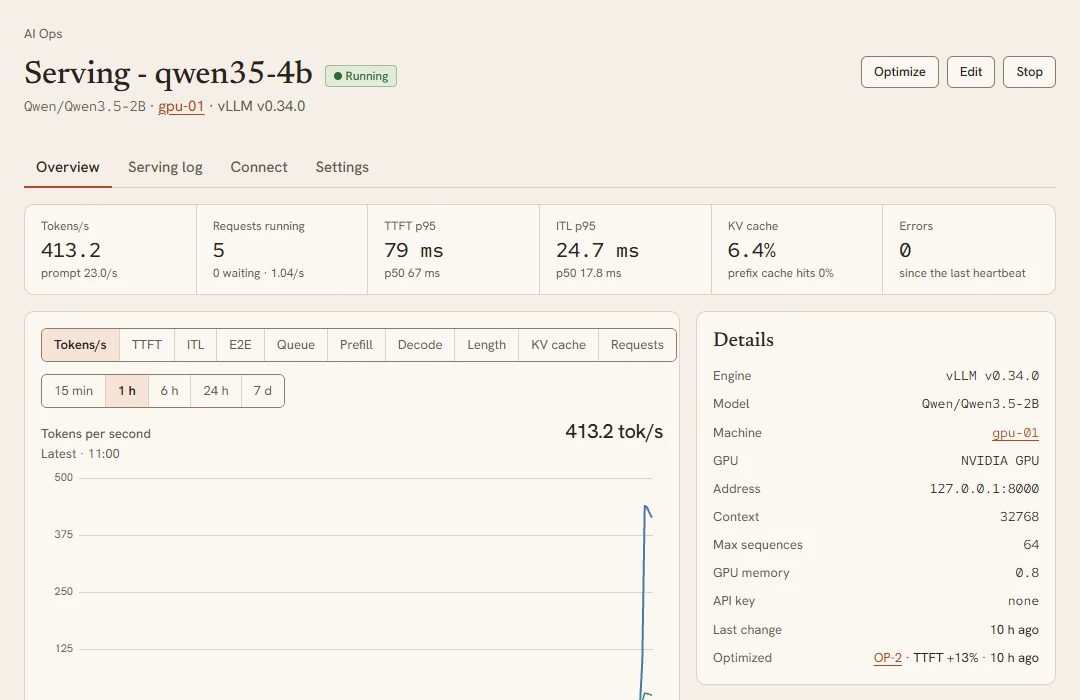
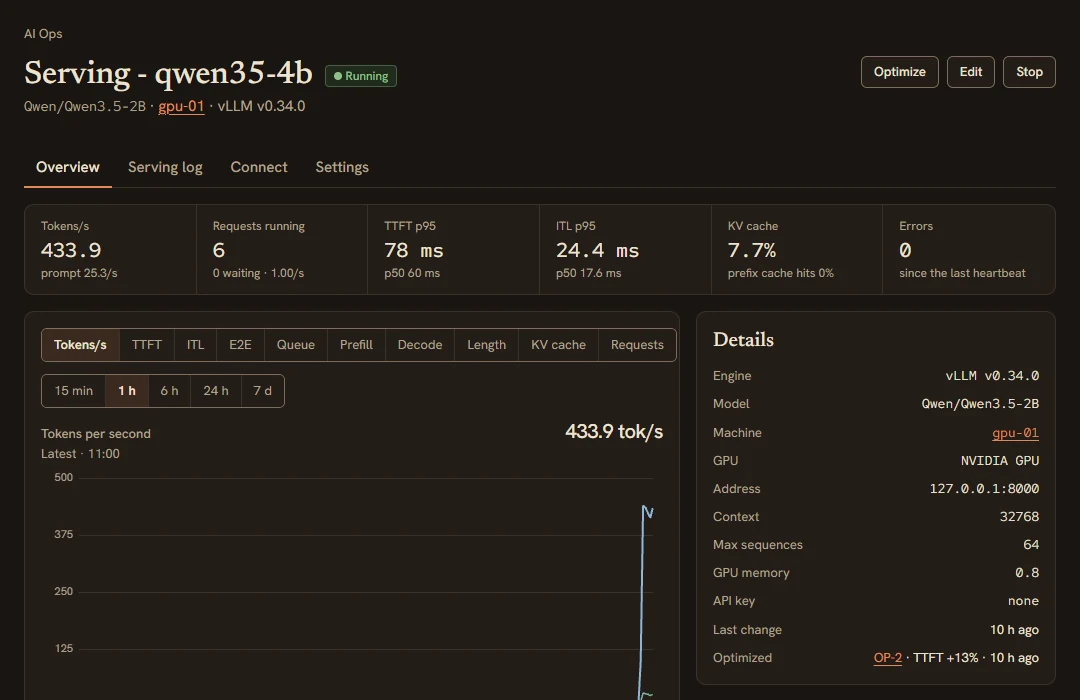
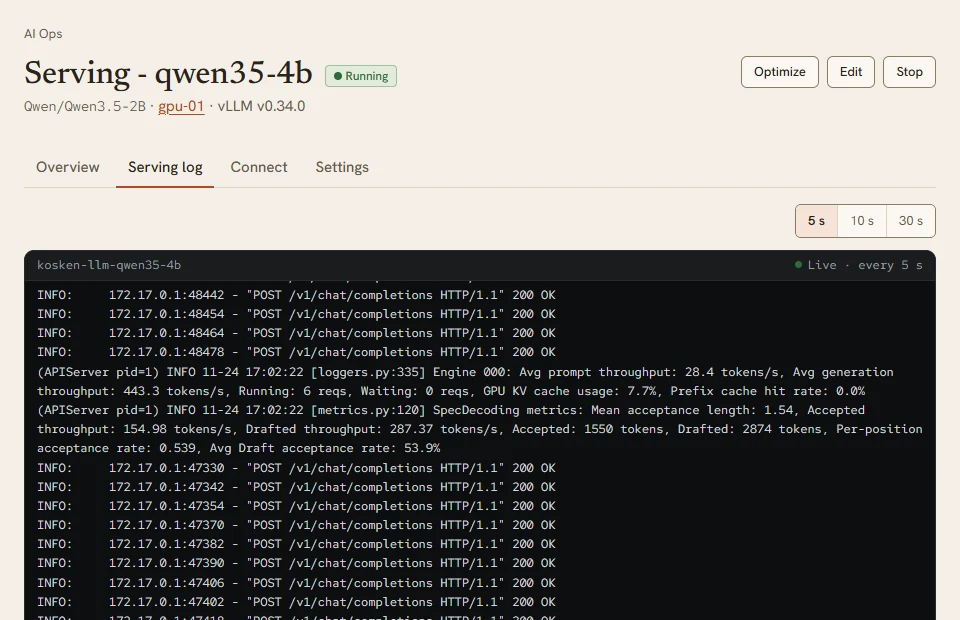
The page of an endpoint has four tabs:
- Overview: live numbers that the agent reads from
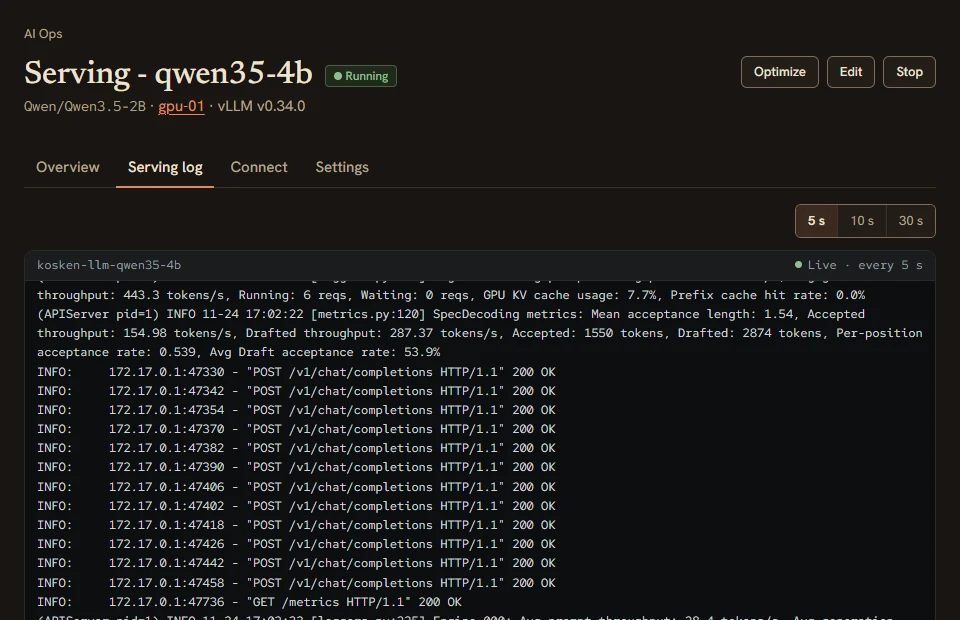
/metricsat each heartbeat (tokens per second, requests running and waiting, TTFT and ITL percentiles, KV cache use, errors), charts of the last hours, the phases of the requests, and Details. When a run of Optimize was kept, Details shows Optimized, with the run, its goal and its gain. - Serving log: the log of the vLLM container, every 5, 10 or 30 seconds while the tab is open. It shows up to the last 2,000 lines, each one whole, the reads of
/metricstoo. Only the value of an API key is hidden. Drag the corner of the box to make it taller; it keeps its height when the log refreshes. - Connect: the base URL, the published port, the models and the API key, with a copy button.
- Settings: the image, the model, the GPUs, the address and every flag of the server, with a link to all the settings of the vLLM version.
The buttons at the top are Optimize, Edit, and Stop or Start. Delete is in the Settings tab. Deleting removes the container; the downloaded model stays on the machine. Serving needs agent 0.1.318 or newer, and the full serving log needs agent 0.1.364 or newer.
Adopt a server that Kosken did not deploy
Kosken finds the model servers on a GPU machine that it did not deploy: a container of a vLLM or SGLang image, or a vllm serve or SGLang process on the host. The Overview of AI Ops lists them under Model servers that Kosken did not deploy, with the machine, the model, the container or process, and the address.
Select Adopt to record a server as an endpoint. Adopt changes nothing on the machine. Kosken reads the model, the port and the flags from the arguments of the server, and the endpoint gets its page, its metrics, its serving log, its monitors and benchmarks. If the server asks for an API key, type it in the row so the benchmarks can send it; Kosken keeps it sealed.
Kosken did not start an adopted server, so it does not stop, start or edit it. To do that, or to run Optimize, which restarts the server in each round, select Take over on the endpoint page. Kosken stops the container, runs the same model in a container of Kosken with the image of Kosken, the same port and the same flags, and lists the flags that it does not pass again. If the new container does not answer, Kosken starts the container of before again, and the endpoint stays adopted with the reason. A server that runs as a process on the host cannot be taken over: stop it and deploy the model with Kosken.
Forget, in the Settings tab, deletes the adopted endpoint and its monitors. The server keeps running. Adopt needs agent 0.1.380 or newer.
Pull the images through a mirror or an account
Kosken pulls the images of vLLM and SGLang from Docker Hub, which limits the pulls of each address. When many machines deploy at the same time, set Settings › Image registry. Only an owner changes it.
- Registry mirror: a registry that holds the images of Docker Hub under the same names, such as
mirror.example.com/dockerhub. Kosken pullsmirror.example.com/dockerhub/vllm/vllm-openai:<tag>. - User name and Access token: the account that pulls, of Docker Hub or of the mirror. Use a read-only token. Kosken keeps it sealed, sends it only with a deploy or a benchmark, and the machine writes it to a Docker config of its own that it deletes after the pull. It never goes on a command line.
The settings apply to the next deploy, take over and benchmark. An image that is already on a machine is not pulled again.
The GPU tab of a machine
A machine with a GPU has a GPU tab after Hardware. It shows the driver and the CUDA version, a row for each GPU, charts of use and temperature for each GPU, the processes on the GPUs with their container, pod or systemd unit, and the number formats that each GPU model runs (FP16, BF16, INT8, FP8 and others). A crossed-out format needs a newer GPU.
GPU monitors
The first time Kosken finds a GPU in a workspace, it adds five monitors that apply to every machine with a GPU. You can edit, turn off or delete each one in Signals. A deleted monitor does not come back.
| Monitor | Fires when | Severity |
|---|---|---|
| GPU too hot | The average temperature of a GPU stays above 85 °C for 5 minutes. | Warning |
| GPU slows down | A GPU slows down for heat or a hardware reason in more than 20% of the readings over 15 minutes. A power cap under full load is normal and does not count. | Warning |
| GPU error (Xid) | The kernel log shows an NVIDIA Xid error in the last 5 minutes. | Critical |
| GPU memory errors (ECC) | A GPU has uncorrected memory errors, or memory that waits for a reset. | Critical |
| GPU missing | A GPU that the machine had stops answering. | Critical |
The GPU monitors need agent 0.1.312 or newer. An older agent does not get them, so they never show as a false failure. GPU and model monitors lists every monitor, and the four that each model endpoint gets.
What Kosken can tune
The Tune a GPU machine guide shows the tuning scan, what each optimization changes and how it runs.
The GPU tab of a machine lists the settings that make models run faster, and gives each one a state:
- Available: Kosken can change it on this machine.
- Not available, with the reason: the machine does not allow the change. Kosken never offers it.
- Not checked yet: the facts do not tell. Kosken checks it later without changing anything.
The parameters of the model server (vLLM or SGLang) can be tuned on any machine that runs a model. GPU power, clocks and the operating system settings depend on the machine:
| Machine | GPU power and clocks | OS settings |
|---|---|---|
| A virtual machine with the GPU passed through | By a test on the machine. | By the tuning scan. Many virtual machines have no CPU frequency control. |
| Bare metal Linux | By a test on the machine. | By the tuning scan. |
| An agent in a container | Not available: tune them on the host. | Not available: tune them on the host. |
Something here does not match the app? Tell us